
Make a scanned PDF searchable with OCR, without uploading it
· 7 min read
How to turn a scan or a photographed document into a PDF you can search, copy from and edit, in your browser, with the accuracy measured on Hindi and Telugu scans.
Is your PDF a scan?
Open it in the PDF viewer and try to select a word, or search for one. If nothing can be selected and the search finds nothing, the pages are pictures: a scanner or a camera made them, and the PDF holds no text at all. That is what OCR (optical character recognition) fixes. It reads the picture of each page and writes the words it recognises into an invisible layer over the picture, so the page looks exactly as before but can now be searched, copied from, indexed by your computer and edited.
Step by step
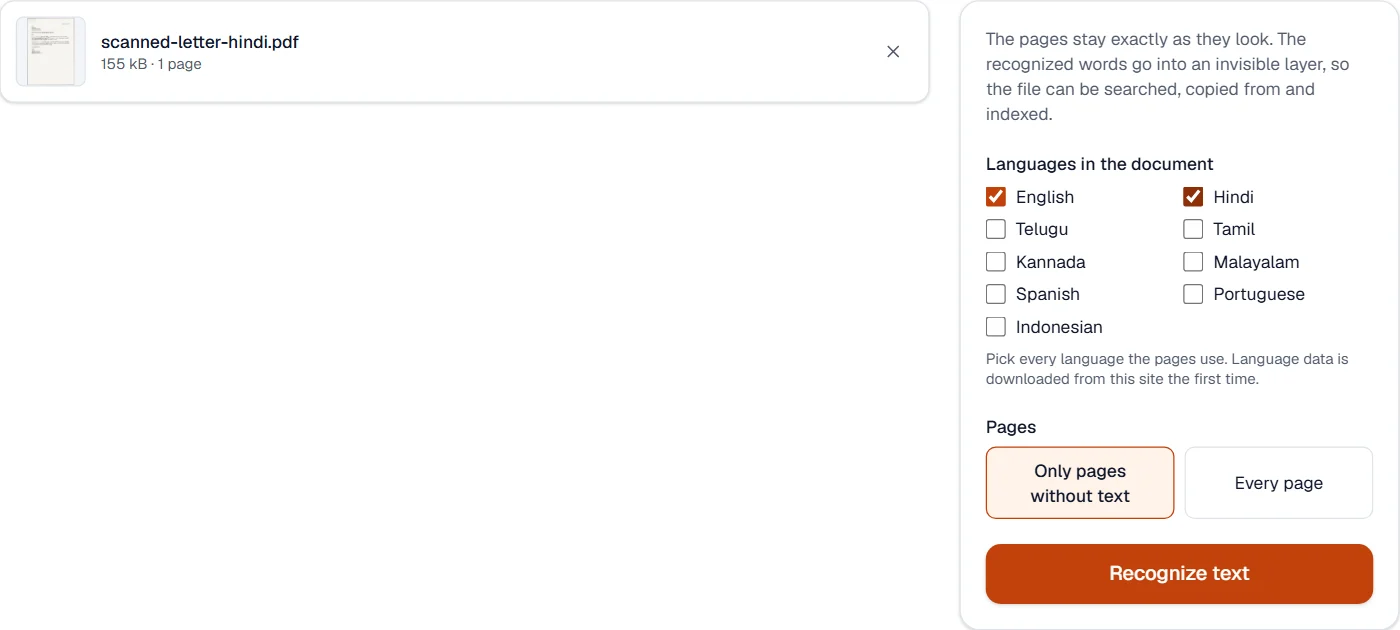
- Open OCR PDF and add the scan. Recognition runs in your browser, in a background worker; the file is never uploaded, which matters for the kind of documents people scan.
- Tick every language the pages use. English, Hindi, Telugu, Tamil, Kannada, Malayalam, Spanish, Portuguese and Indonesian are available, and a bilingual page needs both of its languages ticked, or half of it comes out in the wrong alphabet.
- Leave Only pages without text selected unless you want pages that already have a text layer read again; Every page does that.
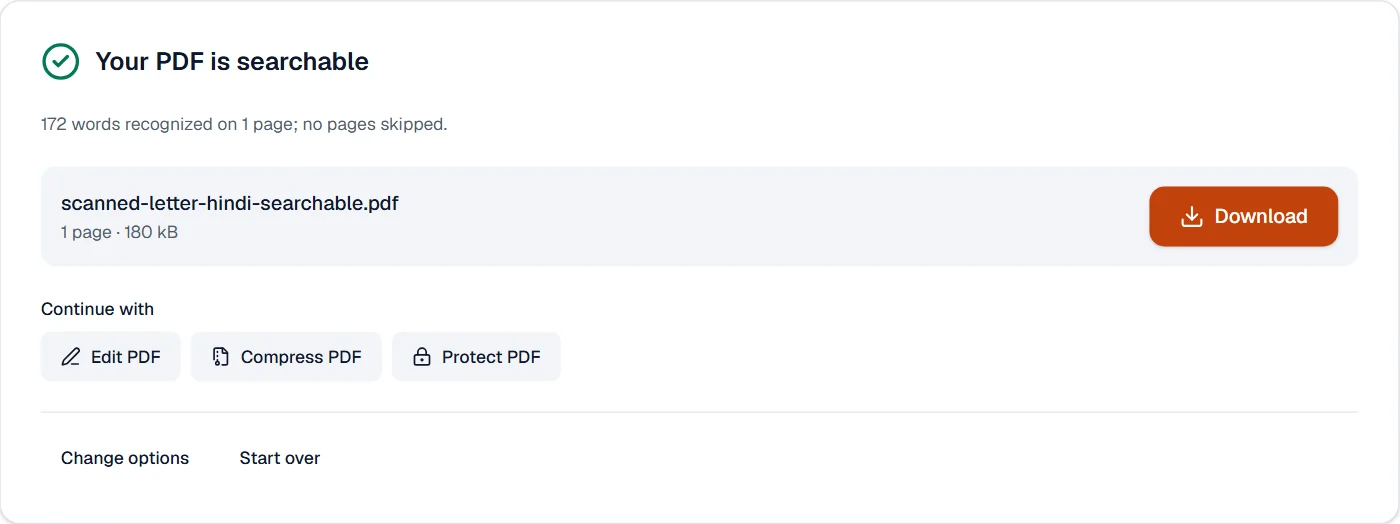
- Press Recognize text. The first run downloads the language data from this site, 6 to 20 MB per language, which your browser keeps; after that a clean page takes a few seconds on a laptop. The progress shows the page being read.
- Download the result, open it in the viewer and search for a word you can see on the page. It is the same file with the text layer added; nothing visible changed.
How accurate it is
We wrote a one-page letter in Hindi and one in Telugu, rendered each as a 200 dpi scan with a slight skew and paper grain, and compared what the tool read with the words the letters were made from, character by character.
| Sample | Characters | Accuracy | Engine confidence |
|---|---|---|---|
| Hindi letter, printed, 200 dpi | 877 | 98.6% | 90% |
| Telugu letter, printed, 200 dpi | 736 | 99.6% | 91% |
One or two wrong characters in a hundred, usually a conjunct or a vowel mark, on a clean printed page. A search still finds the word; the editor fixes the character. A faded photocopy, a photo taken at an angle or a page under 150 dpi does noticeably worse, and that is where the next section earns its place.
Get a better scan first
- From a phone, use Scan to PDF rather than a photo: it finds the page, straightens it, evens out the lighting and cleans the paper. A straight, flat, evenly lit page is worth more than any setting in the recognition.
- From a scanner, 300 dpi in grayscale or black and white. Colour adds nothing for text and triples the file.
- Keep the page flat and the whole page in the frame. A fold casts a shadow that reads as a line of marks.
- Scan the original rather than a photocopy of a photocopy when you can.
After OCR
- Correct a word
- Open the result in Edit PDF: the recognised text is editable over the scan.
- Get a Word file
- PDF to Word works from the text layer, so run OCR first; a scan without one converts to a document of pictures.
- Get the table
- PDF to Excel after OCR. The words are recognised in reading order; the spreadsheet tool rebuilds the columns.
- Make it smaller
- The text layer adds little. If the scan itself is large, Compress PDF after OCR keeps the layer and shrinks the pictures.
What OCR will not do
- Read handwriting. The engine knows printed letters; handwriting comes out as noise.
- Guess the language. A page in a language you did not tick is read with the wrong alphabet.
- Keep a table as a table. The layout is not rebuilt; the words are, in reading order.
- Rescue a bad scan. Below about 150 dpi, or with heavy skew or shadow, accuracy drops quickly, and no setting brings it back.
- Change how the page looks. The text layer is invisible by design; the scan stays as it was, which is what you want for a document someone may inspect.