
PDF reader
Read any PDF fast, with thumbnails, an outline and search, even a thousand pages long, and print it.
or drop files here
You can also paste with Ctrl+V
A document we wrote for this: nothing of yours is used.
Processed on your device. Files are never uploaded.
Quick facts
- Takes
- One PDF, up to 500 MB. A password-protected PDF asks for its password on the file card and opens with it.
- Gives
- The pages on screen, with thumbnails, a page number box, zoom, search, the text selectable for copying, and the text read aloud.
- Runs
- In your browser. The file is never uploaded, and nothing is kept anywhere.
- Plan
- Free, with no account, and never counted: opening a PDF to read it is not a task.
- Next
- Every page here can be sent on to a tool: edit, fill, compress, convert, with the file already open.
A reader, not a viewer page on our servers
The pages are drawn by pdf.js, the renderer Firefox uses, running in your browser. The first page is drawn as soon as the file is read; the others follow as you scroll, and the thumbnails are drawn once and kept. Search reads the text layer of each page, so a scan without one finds nothing until OCR PDF has given it one.
Read aloud speaks the text with the voices your device already has, through the browser’s own speech: sentence by sentence from the page in view, the sentence being read shown on the page, and the pages turned with it. It picks a voice by the letters each sentence is written in, so a Hindi letter with English lines is read in both, and any voice and speed the device offers can be chosen. Some browsers also list online voices, which send each sentence to the browser maker’s service to be spoken; they are marked online, and one on the device is chosen first.
Reading is the point of this page, which is why it does not edit. The tools that change a file take over from here with the same file, nothing uploaded in between.
Measured on our sample file
| Sample | Pages | Size | First page on screen |
|---|---|---|---|
| Text report | 3 | 28 kB | 1.6 s |
Read it as what a visitor waits: well under a second for a text document on a laptop, and a little longer for a scan whose pages are large pictures. Nothing in that time is a network round trip.
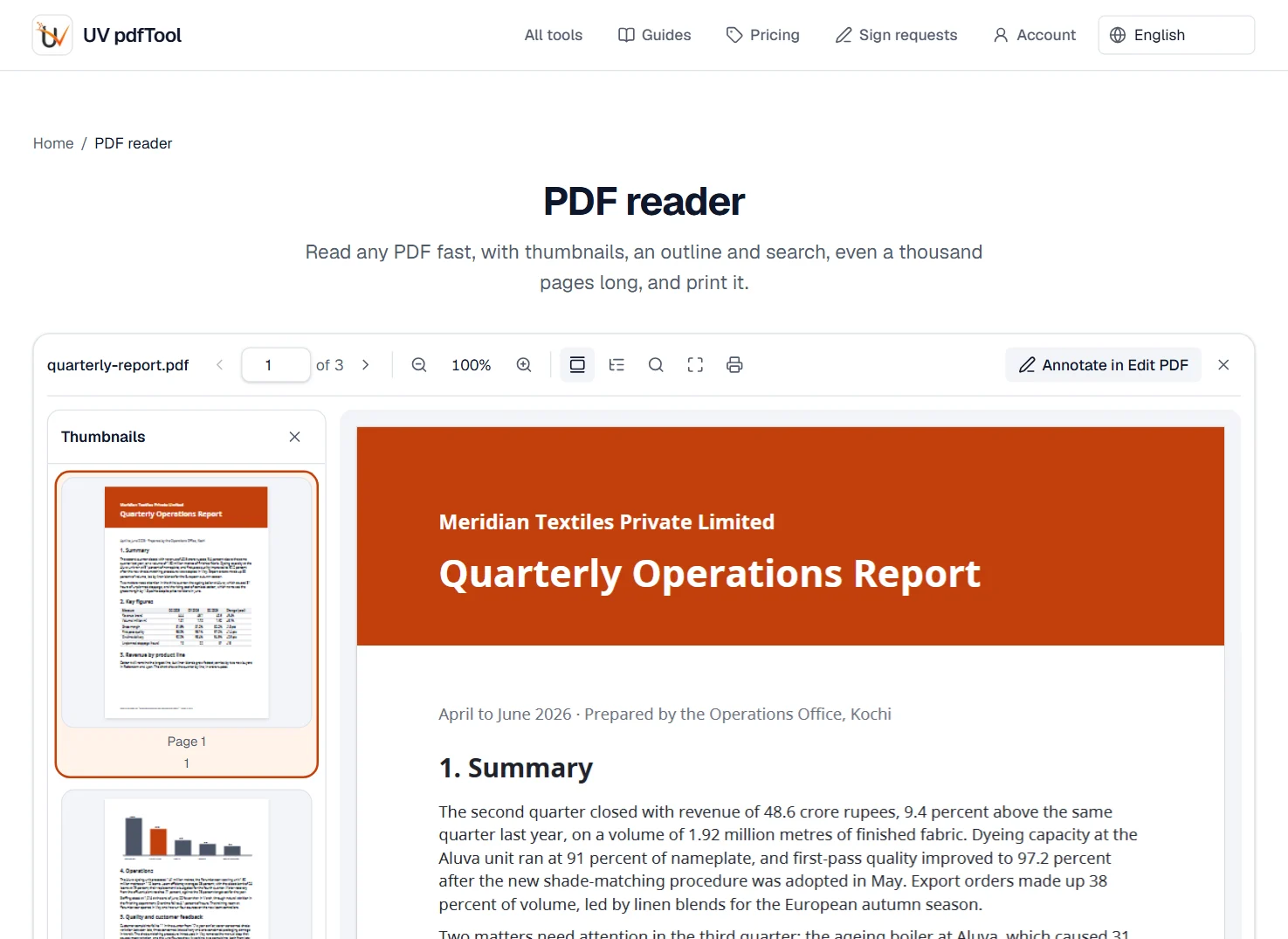
What it looks like
What it cannot do
- Edit the text or fill a form: this page reads. Edit PDF and Fill and sign PDF do that.
- Open an XFA form, the older dynamic kind: its pages show, its fields work in no browser reader.
- Show a 3D model, an embedded video or a file attachment. The page they sit on shows; the object does not.
- Print the pages as lines and letters. Each page is drawn at 200 dpi and printed as a picture through the browser’s print dialog, sharp on paper; a PDF reader prints them as the file describes them.
- Print a file of more than 500 pages from here. Download it and print it from a PDF reader.
If something goes wrong
- This PDF is protected. Enter its password to continue.
- Type the password on the file card; it never leaves your device. Without it the file cannot be read, here or anywhere.
- This PDF is damaged and can't be read.
- Run it through Repair PDF; most damaged files read again. Open Repair PDF
- A page stays blank for a while
- A page that is one large picture, such as a scan at 600 dpi, takes a moment to draw and more memory on a phone. The thumbnails come first; the page follows.
About PDF reader
The PDF reader opens any PDF right in your browser, with page thumbnails, bookmarks, search, zoom, the document’s own page numbers and printing. Nothing is uploaded, so it is a safe way to read contracts, statements and scans without installing a viewer.
How to use PDF reader
Add the PDF you want to read by dropping it on the page or choosing it from your device.
Move through the pages with the thumbnails or the outline, zoom in, and search for any word.
Switch to the editor, fill a form or sign the document from the same window when you need more than reading.
Frequently asked questions
- Can I read a password-protected PDF?
- Yes. You are asked for the password when the file opens; it is used on your device only and never sent anywhere.
- Does the reader work offline?
- Once you have opened the site, the reader and the other browser tools keep working without a connection.
- Can I search inside a scanned PDF?
- Scans have no text layer, so run OCR PDF first; the reader then finds words in the recognized text.
- Can I present a PDF full screen?
- Yes. "Present full screen" shows one page at a time, and the arrow keys move between pages.
- How do I jump to a page or find a word?
- Type a page number in the toolbar, or the page’s own number, such as iv, when the document gives its pages labels; open the outline for the chapters, or use the search panel to list every match and jump to it.
Related tools
- Edit PDFEdit the text of a PDF like in a word processor, add text, images, signatures, stamps, shapes, highlights and comments, and check the spelling of the whole file.
- Compare PDFSee what changed between two versions of a PDF: word by word, by how the pages look, or a copy checked against its original.
- Fill and sign PDFFill in a PDF form, then sign it in the editor.
- OCR PDFMake a scanned PDF searchable, with text you can copy, in 25 languages.
Guides
- Make a scanned PDF searchable with OCR, without uploading itHow to turn a scan or a photographed document into a PDF you can search, copy from and edit, in your browser, with the accuracy measured on Hindi and Telugu scans.
- Redact a PDF permanently: remove the text, not just cover itWhy a black box drawn over a PDF hides nothing, how to remove text, pictures and comments for good in your browser, and how to check that they are gone.