
Remove pages
Delete the pages you don’t need from a PDF, picked by hand or found blank.
or drop files here
You can also paste with Ctrl+V
A document we wrote for this: nothing of yours is used.
Processed on your device. Files are never uploaded.
Quick facts
- Takes
- One PDF. A password-protected PDF is opened once its password is typed on the file card.
- Gives
- The same PDF without the pages you marked, by hand or as the blank pages found in a scan. The pages that stay are copied as they are; a removed page is gone from the file, not hidden in it.
- Runs
- In your browser. The file is never uploaded, and nothing is kept anywhere.
- Plan
- Free, with no account and no watermark: 10 tasks a day, on files up to 50 MB and 100 pages. Pro has no daily count and takes files up to 500 MB, with no page limit.
- Choosing
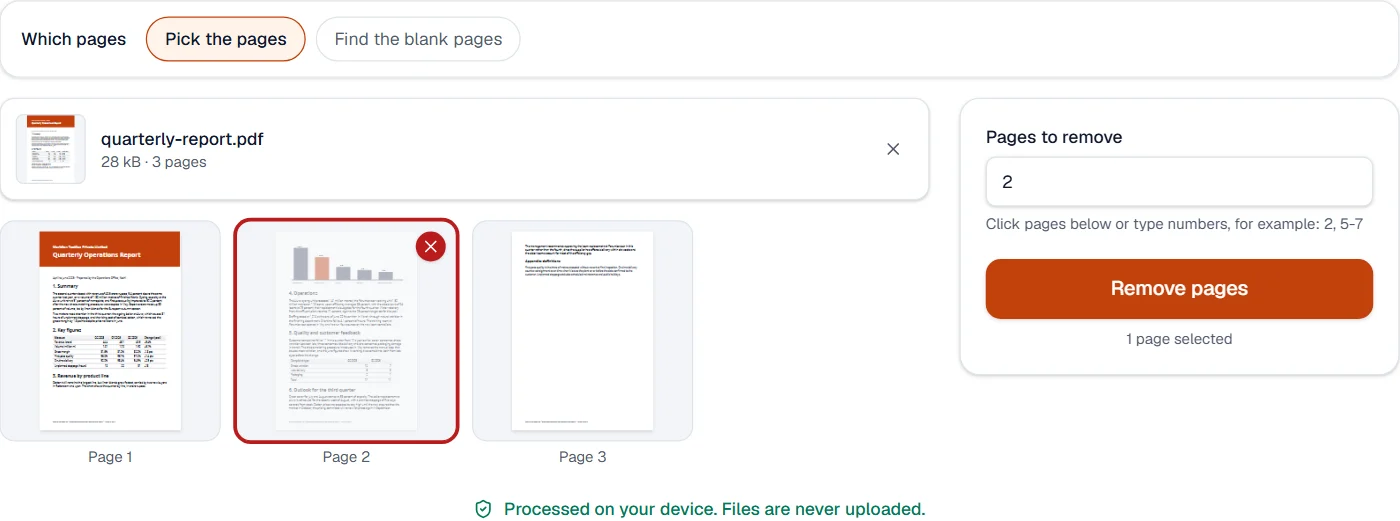
- Click the pages in the grid; each marked page is crossed, and the button says how many will go. At least one page must stay.
Gone, not hidden
A new PDF is made from copies of the pages that stay. Nothing of a removed page is carried along: a link that pointed at it is cut rather than left dangling, so the removed page cannot be found inside the file by anyone who looks. Removing is about whole pages; a word or a picture inside a page is removed with Redact PDF.
Measured on our sample file
| Sample | Pages before | Pages after | Input | Output | Time |
|---|---|---|---|---|---|
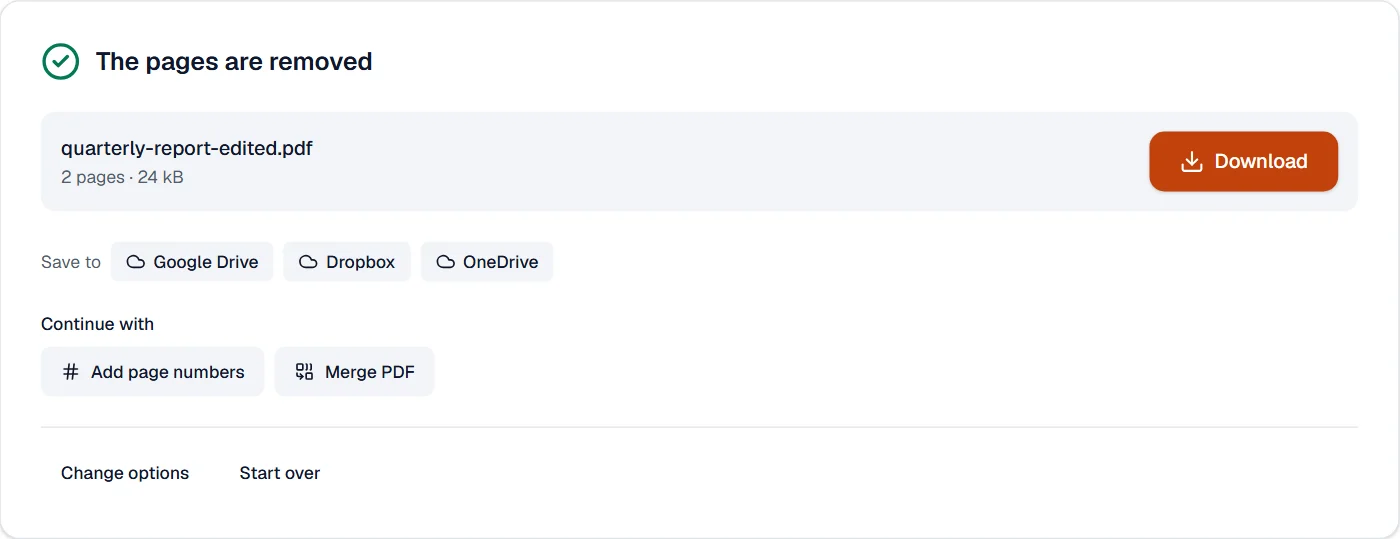
| Text report | 3 | 2 | 28 kB | 24 kB | 0.3 s |
What it looks like
The blank pages found
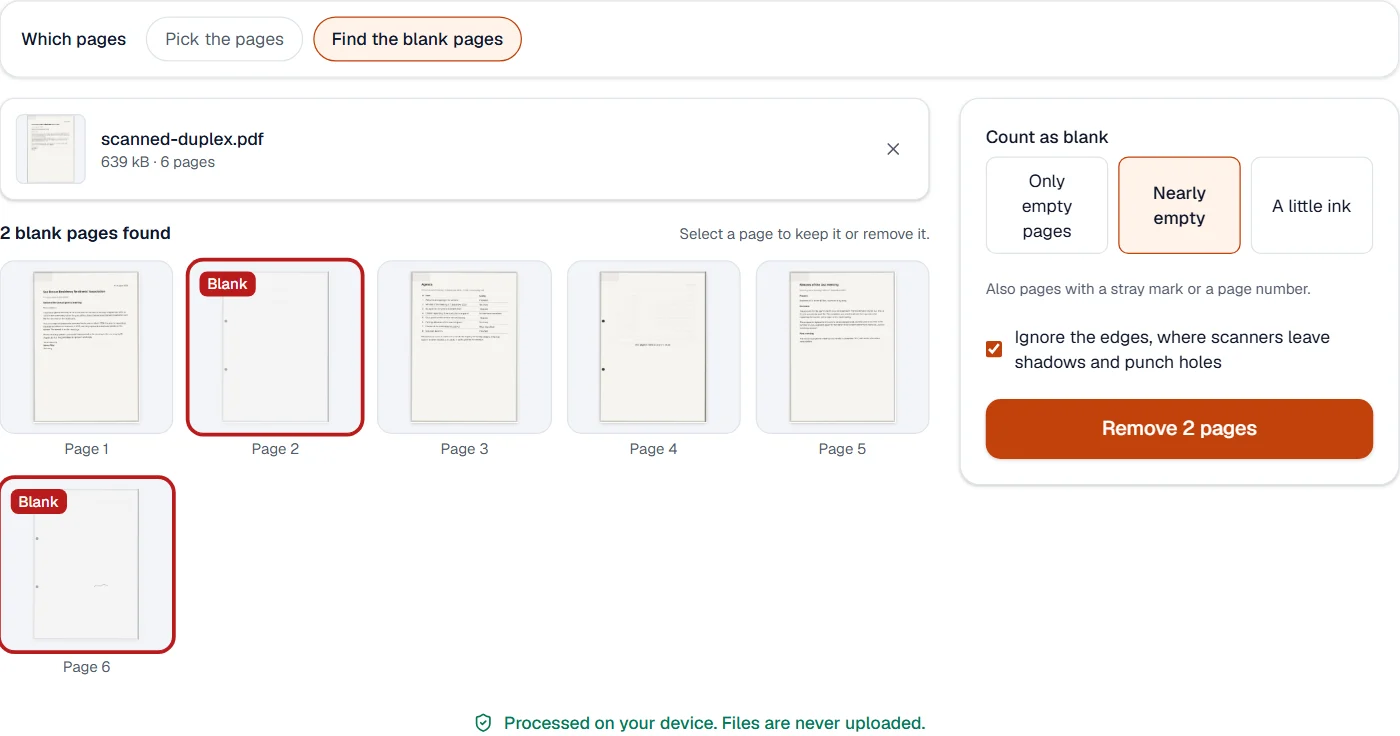
Choose Find the blank pages above the file and the empty pages of a scan are found and marked, at the strictness you set, for you to check before they go.
Quick facts
- Takes
- One PDF, scanned or not. A password-protected PDF is opened once its password is typed on the file card.
- Gives
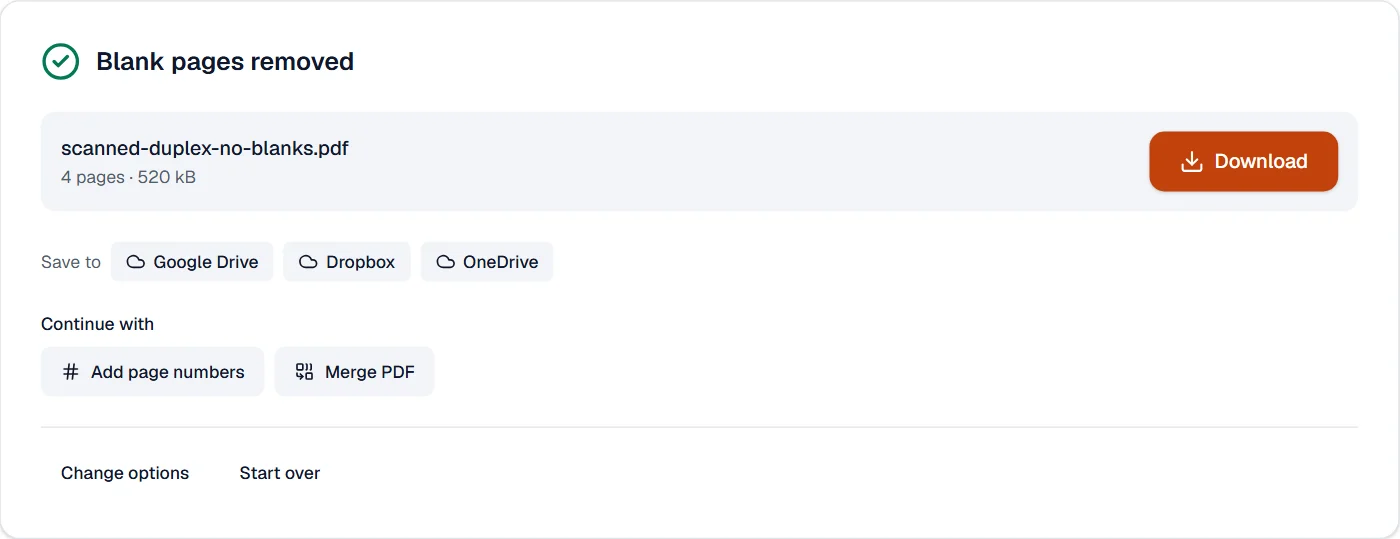
- The same document without the pages you agree are blank; every other page is kept exactly as it was.
- Runs
- In your browser. The file is never uploaded, and nothing is kept anywhere.
- Plan
- Free, with no account and no watermark: 10 tasks a day, on files up to 50 MB and 100 pages. Pro has no daily count and takes files up to 500 MB, with no page limit.
- Blank means
- Only empty: under 0.03% of the page in ink. Nearly empty: under 0.1%, enough for a stray mark or a page number. A little ink: under 0.3%, enough for a short line of print.
Ink measured, then shown to you
Each page is drawn at 40 dpi in your browser and its pixels sorted into paper and ink by the gray level that best separates them, so yellowed paper reads like white. Only clearly dark pixels with dark neighbors count: specks of dust and scanner noise do not, and neither does print showing faintly through from the other side of the sheet. The outer 5% of each side is left out by default, where scanners leave the shadow of the lid and punch holes show.
Nothing is removed on the measurement alone: every page is shown with the ones found blank marked, and a click keeps or removes any of them. The file always keeps at least one page.
Measured on our sample file
| Setting | Pages found blank |
|---|---|
| Only empty pages | 2 |
| Nearly empty | 2, 6 |
| A little ink | 2, 4, 6 |
| Nearly empty, edges counted | None |
Checking all six pages took 1.9 s. With the edges counted, the punch holes and the scanner’s shadow are ink, and no back is blank any more: the reason the edges are left out by default.
What it looks like
What it cannot do
- Remove something from a page. It removes pages; Redact PDF removes words and pictures inside a page.
- Keep bookmarks that pointed to the removed pages.
- Bring a removed page back later. Keep the original file.
- Remove pages that only look empty in color, such as pale watermarks: only ink is measured.
- Remove pages from the middle of a file without checking: you see each page before it goes.
- Remove every page: a PDF keeps at least one.
If something goes wrong
- A PDF needs at least one page, so you can't remove them all.
- A file with no pages is not a PDF. Leave at least one page in.
- Select at least one page.
- Click the pages to remove; each selected page is marked and the button says how many will go.
- This PDF is protected. Enter its password to continue.
- Open it in Unlock PDF with its password first. Open Unlock PDF
- A page with a little text is marked blank
- Choose Only empty pages, or select the page to keep it.
- A blank page is not found
- Choose A little ink, or select the page to remove it.
- A PDF needs at least one page, so you can't remove them all.
- Keep at least one page.
About Remove pages
Remove pages deletes the pages you pick from a PDF and keeps everything else exactly as it was. Choose pages by clicking thumbnails or by typing numbers and ranges; the file stays on your device throughout.
How to use Remove pages
Add the PDF.
Select the pages to remove by clicking their thumbnails or typing numbers such as 2, 5-7.
Choose Remove pages and download the shorter document.
Frequently asked questions
- Can I remove every page except a few?
- Use Extract pages instead: pick the pages to keep and they become the new document.
- Will links to removed pages break?
- Links that pointed at a removed page are dropped; all other links and bookmarks keep working.
- Is there an undo?
- Your original file is never changed, so you can always start again from it.
- How do I delete a page from a PDF on my phone?
- Open this page in the phone's browser, add the PDF, tap the pages to remove and download. Nothing is installed and nothing is uploaded.
- Can I delete pages and then add new ones?
- Yes. Remove the pages here, then use Merge PDF to append another file, or Organize PDF to move its pages into place.
- Will a page with only a page number be removed?
- With Nearly empty, yes: a stray mark or a page number does not count. Choose Only empty pages to keep it.
- My scanner leaves a dark edge. Is that a problem?
- No. The edges of each page are ignored unless you turn that off.
- Can I keep a page that was marked blank?
- Yes. Select it to keep it; select any other page to remove it too.
Related tools
- Extract pagesSave selected pages as a new PDF.
- Organize PDFReorder, rotate, duplicate, delete or reverse pages visually, and add blank pages or another PDF’s pages where you choose.
- Split PDFSplit a PDF into several files by page ranges or page count, at its bookmarks, or into parts under a size.
- Crop PDFCut pages down to the part you want, or trim the margins automatically.