
Compress PDF
Make a PDF smaller, down to an exact size if you need one.
or drop files here
You can also paste with Ctrl+V
A document we wrote for this: nothing of yours is used.
Runs on your device. With Pro, you can choose our servers instead.
Quick facts
- Takes
- One PDF at a time. A password-protected PDF is opened once its password is typed on the file card; to compress it on our servers, unlock it first.
- Gives
- A PDF with the same pages, text and links, smaller where the file had room to shrink.
- Runs
- In your browser. The file is never uploaded, and nothing is kept anywhere. With Pro you can choose Ghostscript on our servers instead, which uploads the file over an encrypted connection and deletes it as soon as the result is fetched. There you can also ask for fast web view, so that a browser shows the first page while the rest is still downloading.
- Plan
- Free, with no account and no watermark: 10 tasks a day, on files up to 50 MB and 100 pages. Pro has no daily count and takes files up to 500 MB, with no page limit.
- Levels
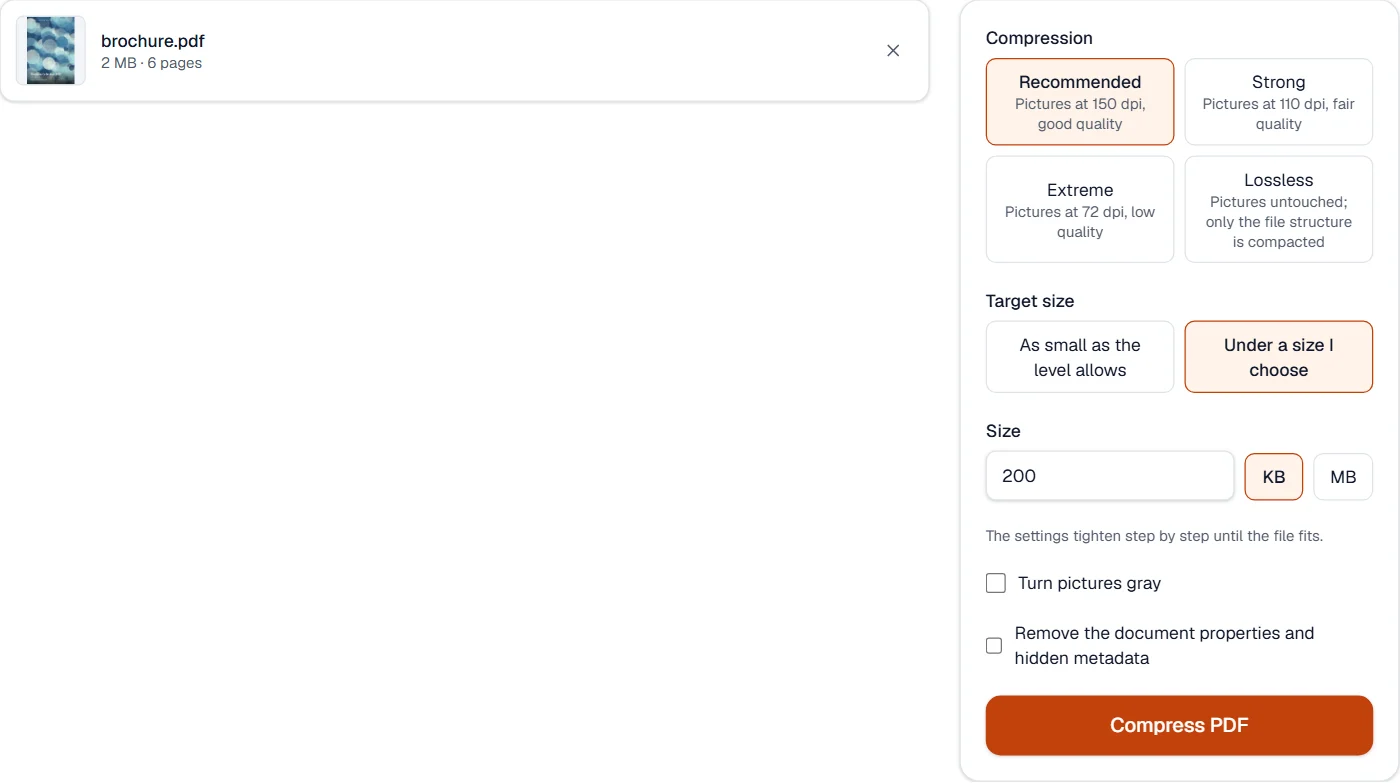
- Recommended keeps pictures at 150 dpi and good quality; Strong at 110 dpi; Extreme at 72 dpi; Lossless leaves pictures untouched and compacts the rest.
- Target size
- Type a size such as 200 KB: the settings tighten step by step, quality first, then resolution, until the file fits. If even the last step is too large, you get the smallest result and a notice.
How the size comes down
A PDF is mostly pictures, text, fonts and the structure that holds them. The tool re-encodes each picture as a JPEG at the size it is actually drawn on the page, stores a picture that appears on several pages once, writes the drawing instructions of each page again with their coordinates rounded to a thousandth of a point (which lets a shape drawn a thousand times be stored once), compresses every stream it can, packs the small objects together and removes what nothing points to any more. Text and vector drawings are never turned into pictures, so words stay sharp at any zoom and can still be selected and searched.
That is why the result depends on what the file is made of. A scan or a photo brochure shrinks a lot; a report that is text with one chart hardly moves, because there is nothing bulky to re-encode. The table below is the tool run on our own sample files; the figures are measured, not estimated.
Measured on our sample files
| Sample | Original | Recommended | Strong | Extreme | Under 200 KB |
|---|---|---|---|---|---|
| Text report, 3 pages | 28 kB | 28 kB (0% smaller) | 28 kB (0% smaller) | 28 kB (0% smaller) | 28 kB |
| Text agreement, 2 pages | 41 kB | 40 kB (0% smaller) | 40 kB (0% smaller) | 40 kB (0% smaller) | 40 kB |
| Form with fields, 1 page | 32 kB | 28 kB (12% smaller) | 28 kB (12% smaller) | 28 kB (12% smaller) | 28 kB |
| Scanned invoice, 2 pages at 200 dpi | 410 kB | 209 kB (49% smaller) | 130 kB (68% smaller) | 61 kB (85% smaller) | 181 kB |
| Scanned letter, 1 page at 200 dpi | 155 kB | 79 kB (49% smaller) | 49 kB (68% smaller) | 23 kB (85% smaller) | 79 kB |
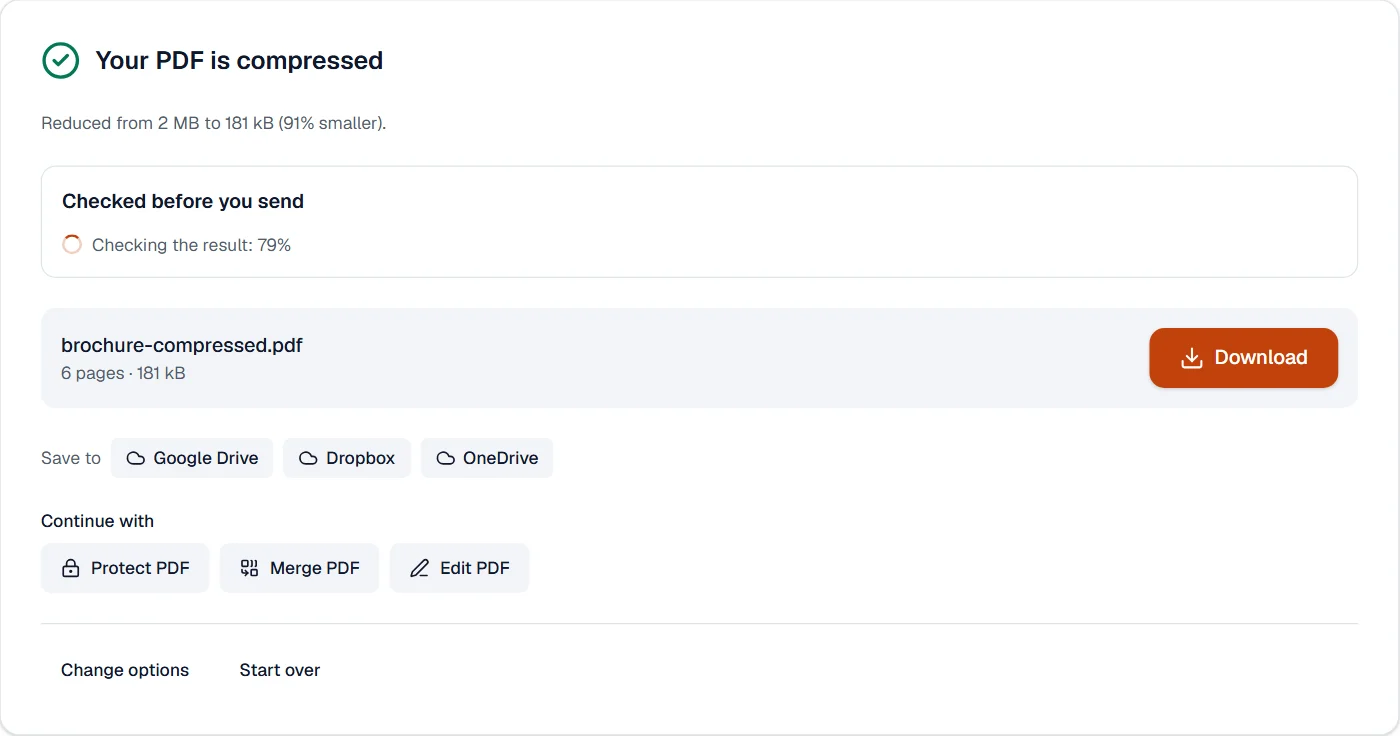
| Picture brochure, 6 full-page pictures | 2 MB | 1 MB (50% smaller) | 571 kB (72% smaller) | 221 kB (89% smaller) | 181 kB |
Read it as a rule of thumb: pages that are pictures or scans lose about half of their size at Recommended, about seven tenths at Strong and up to nine tenths at Extreme; pages that are text lose almost nothing, because they were small already. Recommended keeps pictures at up to 150 dpi and re-encodes them at about 0.08 bytes a pixel, which is where the strongest online compressors' default sits. The target mode reached 200 KB on every sample here, the six-page brochure included, but it cannot promise a size for a file whose bulk is text and fonts.
What it looks like
What it cannot do
- Make a text-only file much smaller. Fonts and vector drawings are kept as they are; if the file is large because of them, no level will change that.
- Change pictures stored as JPEG 2000, JBIG2 or fax (CCITT) encodings, pictures with transparency masks or stencil masks, CMYK JPEGs, and very small pictures. They are left untouched on purpose.
- Reach a target that the pictures alone cannot deliver. When the smallest step is still too large, you get that result and a notice, never a broken file.
- Open a password-protected PDF without its password. You are asked for it on the file card.
- Work on a phone with a very large scan if the phone runs out of memory. A laptop handles files up to the 500 MB that Pro takes.
If something goes wrong
- The file hardly changed
- The file is text, vector drawings and fonts, which are already compact. Try Extreme to confirm; if the size stays, the file cannot shrink by re-encoding. Splitting it or removing pages is the way to a smaller file.
- The target size was not reached
- The pictures were made as small as the last step allows and the rest of the file is bigger than the target. Try a larger target, or remove pages. The result you got is still the smallest the tool could make.
- This PDF is protected. Enter its password to continue.
- Open it in Unlock PDF with its password, compress the unlocked copy, and protect it again if needed. Open Unlock PDF
- Your browser ran out of memory. Try fewer or smaller files.
- Close other tabs and try again, or use a computer for a very large scan. Splitting the file first, then compressing the parts, also works.
- This PDF is damaged and can't be read.
- Run it through Repair PDF first; the repaired copy usually compresses normally. Open Repair PDF
About Compress PDF
Compress PDF makes files smaller so they fit email limits and load faster, by re-encoding pictures at the quality you choose and removing what the document no longer uses. Text stays sharp. Everything happens in your browser and the file is never uploaded, unless you choose our servers with Pro for Ghostscript's stronger compression.
How to use Compress PDF
Add the PDFs.
Pick a level, from light to strong, or a target size; the expected result is shown.
Choose Compress PDF and download the smaller files.
Frequently asked questions
- Why did my file not get much smaller?
- Files made mostly of text and vector drawings are already compact; the savings come from pictures. Scans and photos shrink the most.
- Will the text stay readable?
- Yes. Text and drawings are never rasterized; only pictures are re-encoded, and at a quality you control.
- Can I compress a 300 MB scan?
- Yes, with Pro, if your device has the memory for it: the work happens in your browser, and Pro takes files up to 500 MB, where the free plan stops at 50 MB. A phone may run out of memory on a very large scan; a laptop handles it.
- How do I compress a PDF to 100 KB or 200 KB?
- Choose "Under a size I choose", type the size and compress; the settings tighten step by step until the file fits, and you are told if it cannot.
- Which compression level should I choose?
- Recommended keeps pictures sharp at 150 dpi; Strong and Extreme shrink them further for email and forms; Lossless leaves pictures untouched and only compacts the file.
Related tools
- Merge PDFCombine several PDFs into one, in the order you want, or the front and back sides of a scan made one side at a time.
- PDF to JPGSave each page as a JPG, PNG or TIFF picture, or pull out the pictures inside the PDF.
- Compress imageShrink JPG, PNG and WEBP pictures, down to an exact size in KB when a form demands one.
- Flatten PDFMake form fields, comments and drawings a permanent part of the page.
Guides
- How to compress a PDF under 200 KB without losing the textA step-by-step way to get a PDF under a size limit in your browser, what the result looks like on real files, and what to do when it will not go lower.
- Why a PDF will not compress, and what makes PDFs largePictures, fonts, drawings, attachments and leftovers: what takes the space in a PDF, a one-minute test to tell which one is yours, and what to do about each.