
Edit PDF
Edit the text of a PDF like in a word processor, add text, images, signatures, stamps, shapes, highlights and comments, and check the spelling of the whole file.
or drop files here
You can also paste with Ctrl+V
A document we wrote for this: nothing of yours is used.
Processed on your device. Files are never uploaded.
Quick facts
- Takes
- One PDF. A password-protected PDF is opened once its password is typed on the file card.
- Gives
- The same PDF with your changes written into it: edited paragraphs, new text, pictures, shapes, highlights, drawings, a drawn signature and rubber stamps such as APPROVED with the date, and comments: sticky notes and underlined or struck-through words, which readers list with the others; and the spelling of the whole document checked, in the side panel. The original on your device is not touched.
- Runs
- In your browser. Nothing is uploaded; the fonts the editor needs are fetched from this site. Changes not yet saved are kept in this browser, so a closed tab or a crash does not lose them.
- Plan
- Free, with no account and no watermark: 10 tasks a day, on files up to 50 MB and 100 pages. Pro has no daily count and takes files up to 500 MB, with no page limit.
- Scripts
- Latin, Greek and Cyrillic letters, and Devanagari, Tamil, Telugu, Kannada, Malayalam, Bengali, Gujarati, Gurmukhi and Odia, with a font for each built in.
Editing existing text versus adding text
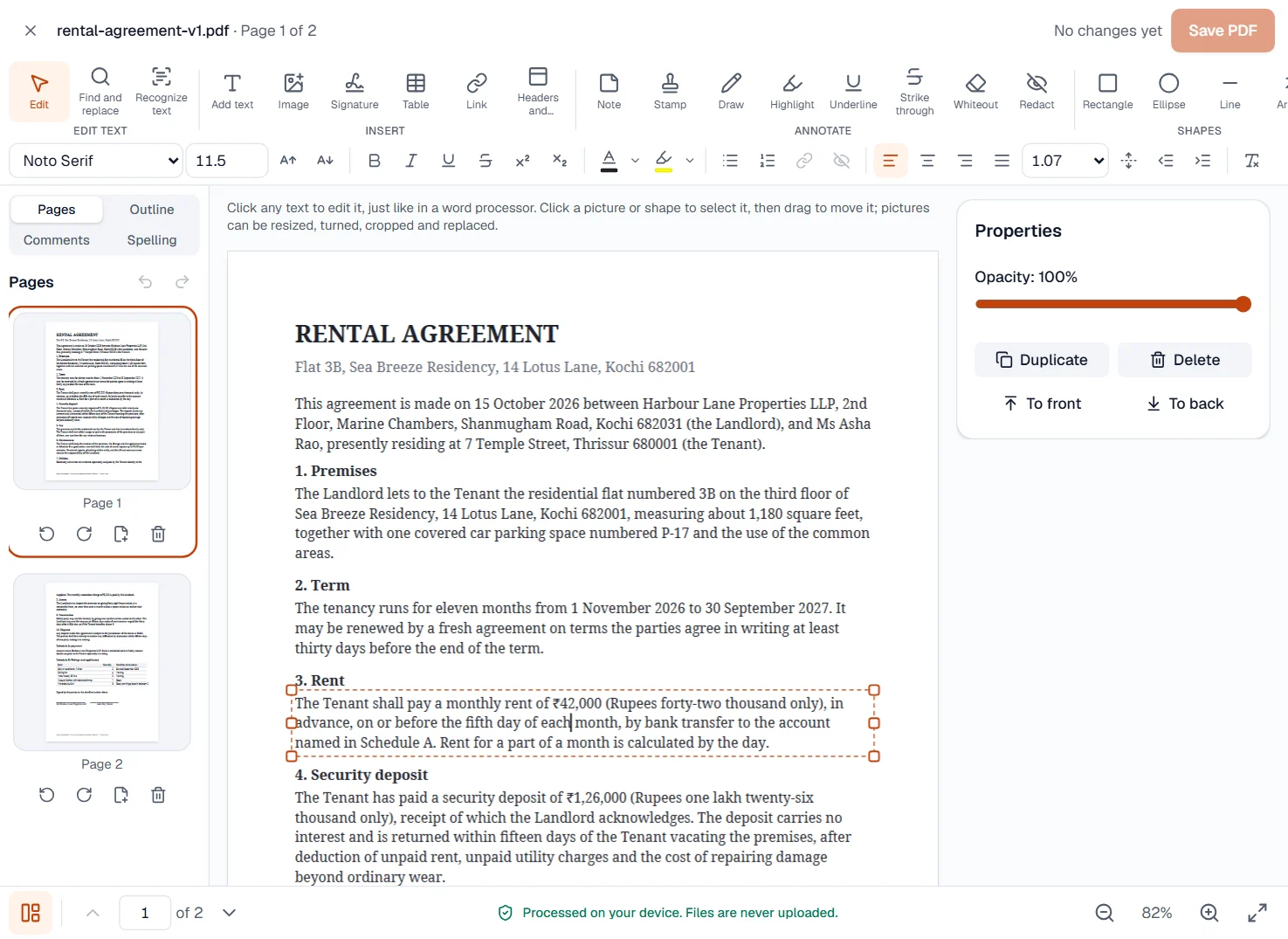
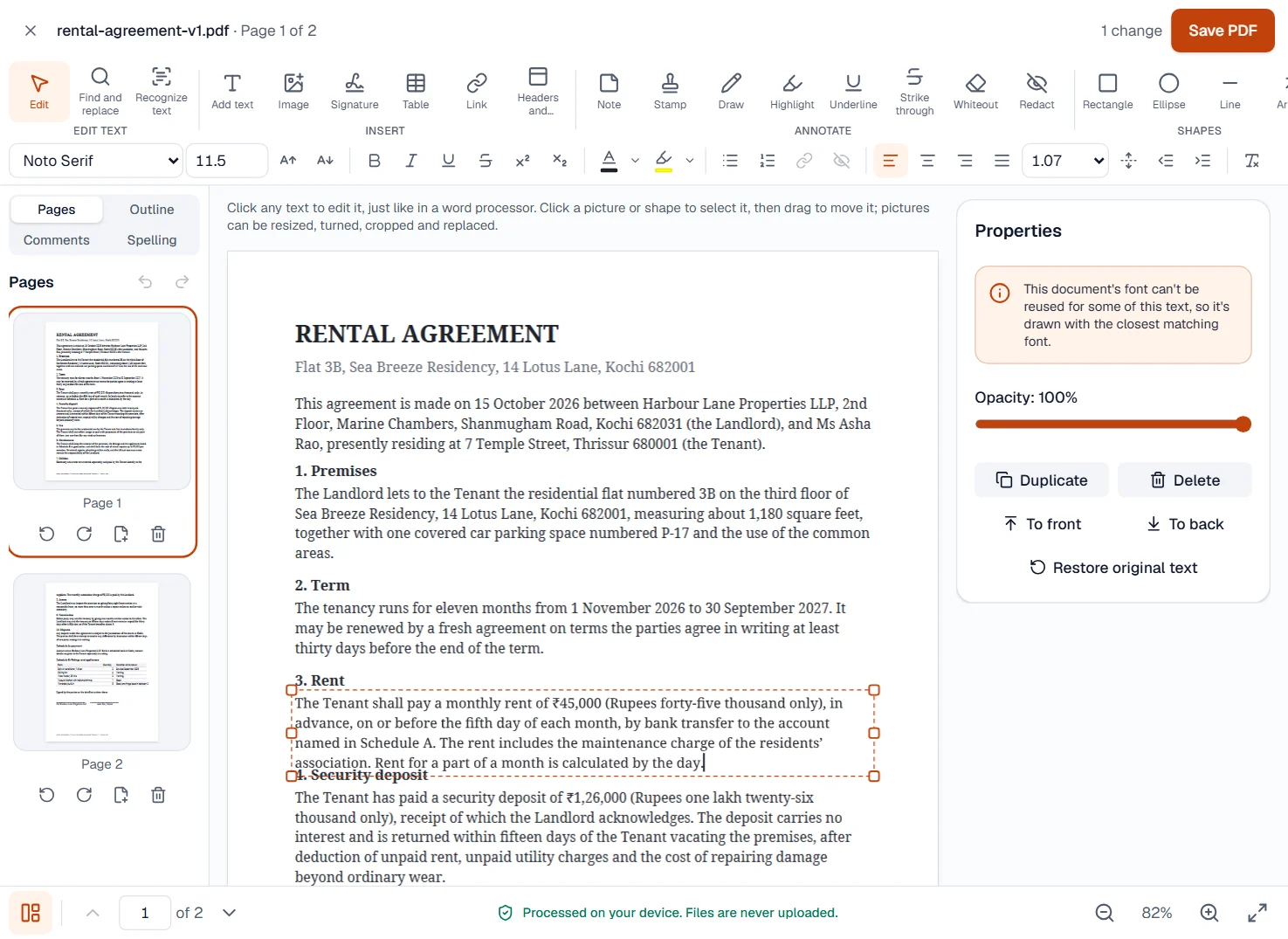
A PDF does not store paragraphs; it stores glyphs at positions. The editor reads them back into lines and paragraphs, so you can click into a sentence and type as in a word processor: the paragraph reflows, the rest of the page stays where it is. That is editing existing text. It works wherever the document carries its own font, which is most PDFs made by Word, LibreOffice, Google Docs and design tools.
Adding text is different: a new box anywhere on the page, in a font the editor provides, in any of the scripts listed above. Pictures, shapes, highlights and signatures are added the same way, and the pictures already in the page can be moved and resized.
When a font is not embedded in the file, the editor substitutes the closest font it has: Carlito for Calibri, Caladea for Cambria, Liberation for Arial, Times New Roman and Courier New, and tells you which. Widths match closely, so lines break in the same places in almost every case; a page set in an unusual font may show a shifted line, which you see before you save.
Measured on our sample file
| Sample | Pages | Before | After | Words retyped | Time to save |
|---|---|---|---|---|---|
| Rental agreement, version 1 | 2 | 41 kB | 53 kB | 56 | 0.61 s |
Read it as what an edit costs: the retyped paragraph is written back as text in the document’s own font, so the saved file’s text layer carries the new words, which is how the figure is checked: the words are searched for in the saved file. The file grows because the paragraph’s font is embedded again with the letters the new words need; the original carried only the letters the document used.
What it looks like
The spelling of the whole document
The Spelling tab of the side panel checks what you type as you type it, and reads the whole document page by page on request, listing each unknown word once with the pages it is on and what it might be.
Quick facts
- Takes
- One PDF with text in it; up to 2,000 pages are read. A scan needs OCR PDF first.
- Gives
- Each word the dictionary does not know, listed once with how often and on which pages it comes, with suggestions; the list downloads as a Markdown file. Words added to your dictionary are not flagged again, here or in Edit PDF.
- Runs
- In your browser, with British and American English, Spanish and Portuguese dictionaries served from this site. Neither the file nor its words are uploaded.
- Plan
- Free, with no account, and never counted: a check makes no file, so it is not a task.
A dictionary in the browser, and the words it does not know
The text of each page is read as a PDF reader reads it, split into words with the browser’s own word breaking, and checked with nspell, a Hunspell checker, against the open dictionaries of the language chosen: the same dictionaries the editor uses as you type. Numbers, web and mail addresses, codes and words in capitals are left alone. A word broken over two lines with a hyphen is checked whole, and taken as it is when both halves are words, as in well-known. Each word is listed once, with every page it is on.
A dictionary knows words, not every name: place names and terms of a trade are listed too, and Add to my dictionary keeps them, in this browser only. To correct the words, open the file in Edit PDF, where Find and replace changes a word everywhere at once. A scan has no text to check until OCR PDF has recognized it.
Measured on our sample file
| Sample | Misspelled on purpose | Found | Other words listed | Time |
|---|---|---|---|---|
| Press release, draft | 10 | 10 | 4: Tiruppur, Ikat, Pochampally, Kalamkari | 0.5 s |
What it cannot do
- Edit a scanned page as text. A scan is a picture. Run OCR PDF first; the result opens in the editor with the recognized text editable over the scan.
- Move the rest of the page when a paragraph grows. A longer paragraph reflows in its own space and can run into what sits below it; shorten it by a word, or move what is below with a drag.
- Reflow text that was never a paragraph: a table cell, a label on a chart, text along a curve, or letters placed one by one by a design tool. Those edit as separate pieces.
- Turn a drawn signature into a certificate. A signature here is a picture of your signature, placed on the page. A certified signature with an audit trail is what Sign requests are for.
- Keep a layout exact when a font is missing and unusual. The substitute font is close, not identical; check the page before saving.
- Edit the text inside form fields. Use Fill and sign for fields; the editor edits the page itself.
- Answer a comment or mark it done. Notes and marked words are added, and the document’s own comments can be taken out; replies are left to a reader such as Adobe Acrobat.
- Check grammar or style. It finds words the dictionary does not know; a real word in the wrong place, such as form for from, is not flagged.
- Check languages other than English, Spanish and Portuguese. There is no dictionary yet for Hindi, Telugu, Tamil, Kannada, Malayalam or Indonesian that the site may ship.
- Read text inside pictures. Run OCR PDF first, then check the recognized text.
- Correct the file itself. Corrections are made in Edit PDF, which opens with the same file.
If something goes wrong
- Clicking a paragraph does nothing, or selects a picture
- The page is a scan or an exported picture of a page. Run OCR PDF first, then open the result here. Open OCR PDF
- A font needed for your text couldn't be loaded. Check your connection and try again.
- The font files are fetched from this site when needed. Check the connection and try again; offline, only fonts already fetched are available.
- A character “can’t be added yet”
- The script is outside the list above. Latin, Greek, Cyrillic and the nine Indian scripts are covered; others are not, and the editor says so rather than printing boxes.
- The line breaks moved after editing
- The document did not embed its font and the substitute is slightly wider or narrower. Shorten or lengthen the sentence by a word, or set the paragraph in one of the built-in fonts.
- This PDF is protected. Enter its password to continue.
- Open it in Unlock PDF with its password first. Open Unlock PDF
- Names and trade terms are flagged
- They are not in the dictionary. Add each to your dictionary once; it is not flagged again, here or in Edit PDF.
- It says the pages have no text
- The pages are pictures of text, as a scan is. Recognize the text with OCR PDF, then check the result. Open OCR PDF
- British spellings such as colour are flagged
- Choose British English as the language of the document: American English takes colour and organise for mistakes.
- This PDF is protected. Enter its password to continue.
- Type the password on the file card; it never leaves your device.
About Edit PDF
Edit PDF changes the text that is already in a PDF like a word processor would: type, delete, reflow paragraphs, change fonts, sizes and colors, find and replace, and add text, pictures, shapes, signatures, rubber stamps and comments, sticky notes and underlined or struck-through words that readers list with the others. Everything runs in your browser.
How to use Edit PDF
Add the PDF; the editor opens with the text ready to edit.
Click into a paragraph and type, or use the toolbar to add text, pictures, shapes, a signature or a comment.
Choose Save and download the edited PDF; the original stays as it was on your device.
Frequently asked questions
- Will the fonts stay the same?
- Edited text keeps the document's own font wherever it is embedded. When a font is missing, the closest bundled font is used and the editor tells you.
- Can I edit a scanned PDF?
- Run OCR PDF first to recognize the text; the result opens in the editor with editable text over the scan.
- Does it work in Hindi, Tamil or other Indian languages?
- Yes. The editor shapes Devanagari, Tamil, Telugu, Kannada, Malayalam, Bengali, Gujarati, Gurmukhi and Odia text correctly, with fonts for each script built in.
- Can I edit a PDF without a watermark or an account?
- Yes. The editor is free, adds no watermark and asks for no sign-up; the saved file is yours exactly as you made it.
- Can I add or move a picture in a PDF?
- Yes. Place a picture anywhere on a page, and move or resize the ones already there. Everything happens in your browser.
- Which languages can it check?
- British and American English, Spanish and Portuguese, with open-source Hunspell dictionaries, the kind LibreOffice and Firefox use. For English, your browser’s language decides which comes first: British spelling, as in India and Ireland, unless the browser asks for American English.
- Why is a name flagged?
- The dictionary knows words, not every name, place or term of a trade. Add to my dictionary accepts a word for good, in this browser, for every spell check on this site.
Related tools
- Fill and sign PDFFill in a PDF form, then sign it in the editor.
- Redact PDFRemove sensitive text and pictures for good: find emails, phone, card, Aadhaar, PAN and IBAN numbers at once, or draw boxes.
- Compare PDFSee what changed between two versions of a PDF: word by word, by how the pages look, or a copy checked against its original.
- OCR PDFMake a scanned PDF searchable, with text you can copy, in 25 languages.
Guides
- Make a scanned PDF searchable with OCR, without uploading itHow to turn a scan or a photographed document into a PDF you can search, copy from and edit, in your browser, with the accuracy measured on Hindi and Telugu scans.
- How to white out text in a PDF, and when to redact insteadCover a wrong date, a typo or a logo with a white box and type over it in your browser, and know the one case where covering is not enough.