
Split pages in half
Cut pages in two: a scanned book's spreads become single pages.
or drop files here
You can also paste with Ctrl+V
A document we wrote for this: nothing of yours is used.
Processed on your device. Files are never uploaded.
Quick facts
- Takes
- One PDF. A password-protected PDF is refused until it is unlocked.
- Gives
- The same document with each chosen page cut in two, down the middle or across it, in reading order: left half first, or right half first for books read from right to left.
- Runs
- In your browser. The file is never uploaded, and nothing is kept anywhere.
- Plan
- Free, with no account and no watermark: 10 tasks a day, on files up to 50 MB and 100 pages. Pro has no daily count and takes files up to 500 MB, with no page limit.
- What is cut
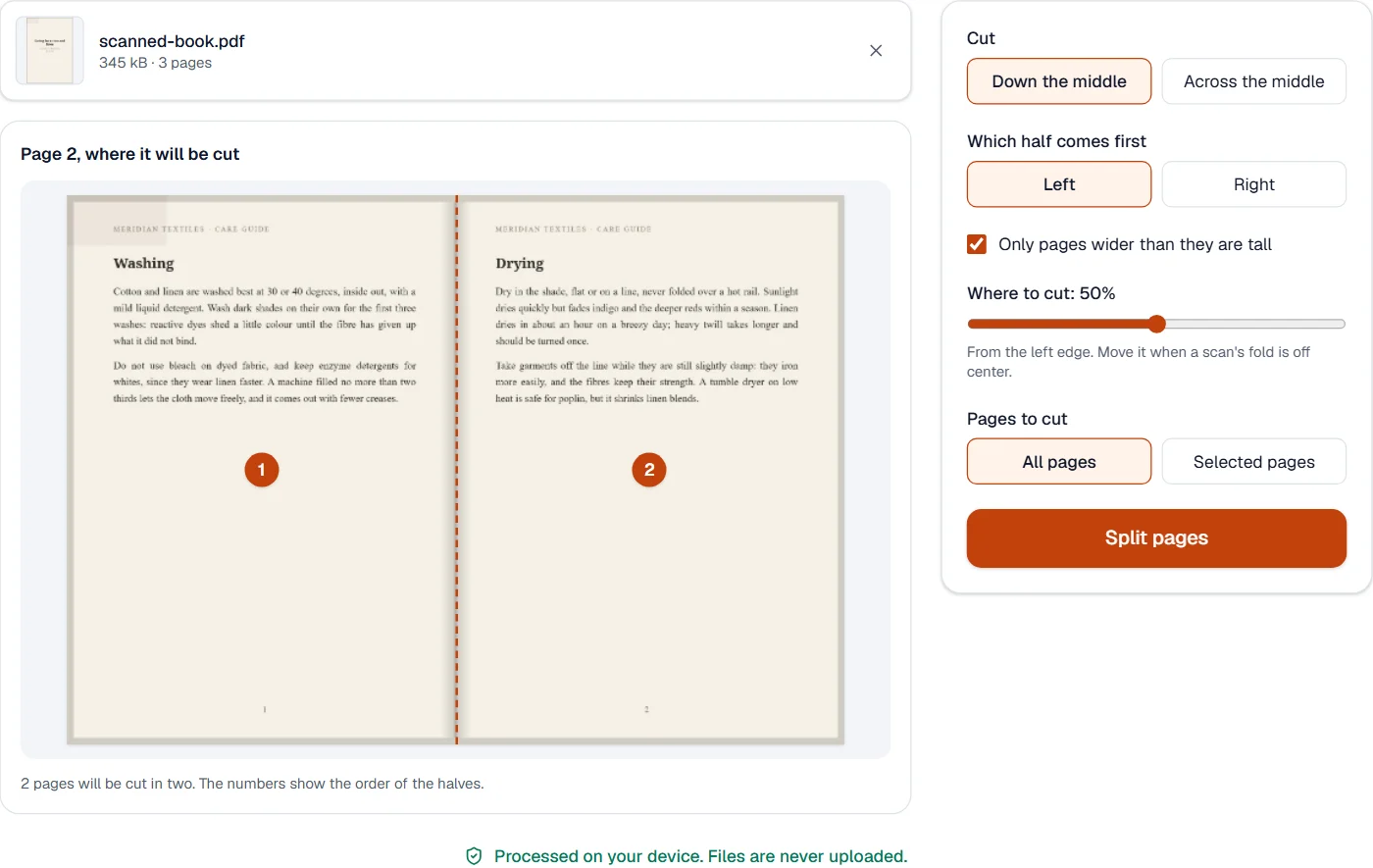
- By default only pages more than 2% wider than they are tall, so a single cover stays whole. The cut can move between 30% and 70% of the page when a scan’s fold is off center.
Two pages that share one scan
Each half is a new page that shows part of the old one: the two halves point at the same content and the same scanned picture, and each page’s box frames only its own side. Nothing is redrawn or encoded again, so every pixel of the scan stays as it was and the file barely grows, however many pages are cut.
Links and bookmarks that pointed at a cut page now open its first half. A scan that is crooked should be straightened first with Deskew PDF, so the fold runs straight down the cut.
Measured on our sample file
| Sample | Pages in | Pages out | Input | Output | Time |
|---|---|---|---|---|---|
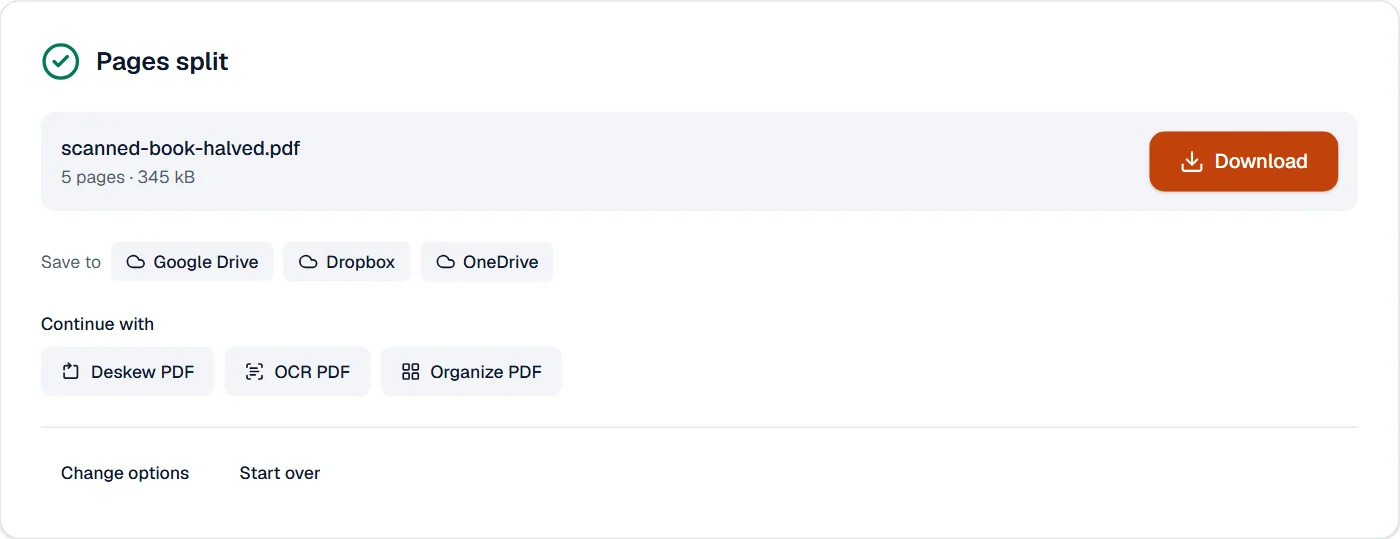
| Scanned booklet | 3 | 5 | 345 kB | 345 kB | 0.2 s |
The cover, which is taller than it is wide, stays one page; each opening becomes two, and the file stays the size of the scan.
What it looks like
What it cannot do
- Find the fold of each scan: the cut is in the same place on every page.
- Straighten crooked scans: do that first with Deskew PDF.
- Cut a page into more than two parts.
If something goes wrong
- Nothing is cut
- None of the chosen pages is wider than it is tall. Turn off the option to cut only wide pages, or check the pages you chose.
- Text from the facing page shows at the edge
- Move the cut a few percent towards the fold, using the preview.
- The halves are in the wrong order
- Choose which half comes first: right for books read right to left.
About Split pages in half
Split pages in half cuts each page of a PDF in two. A scanned book, where every page of the scan holds two facing pages, becomes a PDF with one book page per page, in reading order.
How to use Split pages in half
Add the PDF.
Choose where to cut and which half comes first; the preview shows the cut on the first page.
Choose Split pages and download the result.
Frequently asked questions
- Will the cover stay whole?
- Yes, by default only pages wider than they are tall are cut, so a single cover page stays as it is.
- What if the book is read from right to left?
- Choose the right half first, and each spread's right page comes before its left.
- The fold is not in the middle of my scan.
- Move the cut between 30 and 70 percent of the page; the preview shows where it falls.
- Does the file get twice as large?
- No. Both halves share the scan, which is stored once; each half only shows its own part.
- Can I cut pages across instead?
- Yes. Choose Across the middle to split a page into a top and a bottom half.
Related tools
- Deskew PDFStraighten pages that were scanned at a slant.
- Remove pagesDelete the pages you don’t need from a PDF, picked by hand or found blank.
- OCR PDFMake a scanned PDF searchable, with text you can copy, in 25 languages.
- Organize PDFReorder, rotate, duplicate, delete or reverse pages visually, and add blank pages or another PDF’s pages where you choose.