
Add page numbers
Number pages with the position and style you choose, add a header and footer, or set the page numbers a reader shows.
or drop files here
You can also paste with Ctrl+V
A document we wrote for this: nothing of yours is used.
Processed on your device. Files are never uploaded.
Quick facts
- Takes
- One PDF. A password-protected PDF is opened once its password is typed on the file card.
- Gives
- The same PDF with a number on each chosen page, in one of six positions, in a format such as 3, Page 3 or Page 3 of 12, starting from any number; or a header and footer with a title, the date or the file’s name; or the page numbers a reader shows, set without ink on the page.
- Runs
- In your browser. The file is never uploaded, and nothing is kept anywhere.
- Plan
- Free, with no account and no watermark: 10 tasks a day, on files up to 50 MB and 100 pages. Pro has no daily count and takes files up to 500 MB, with no page limit.
- Preview
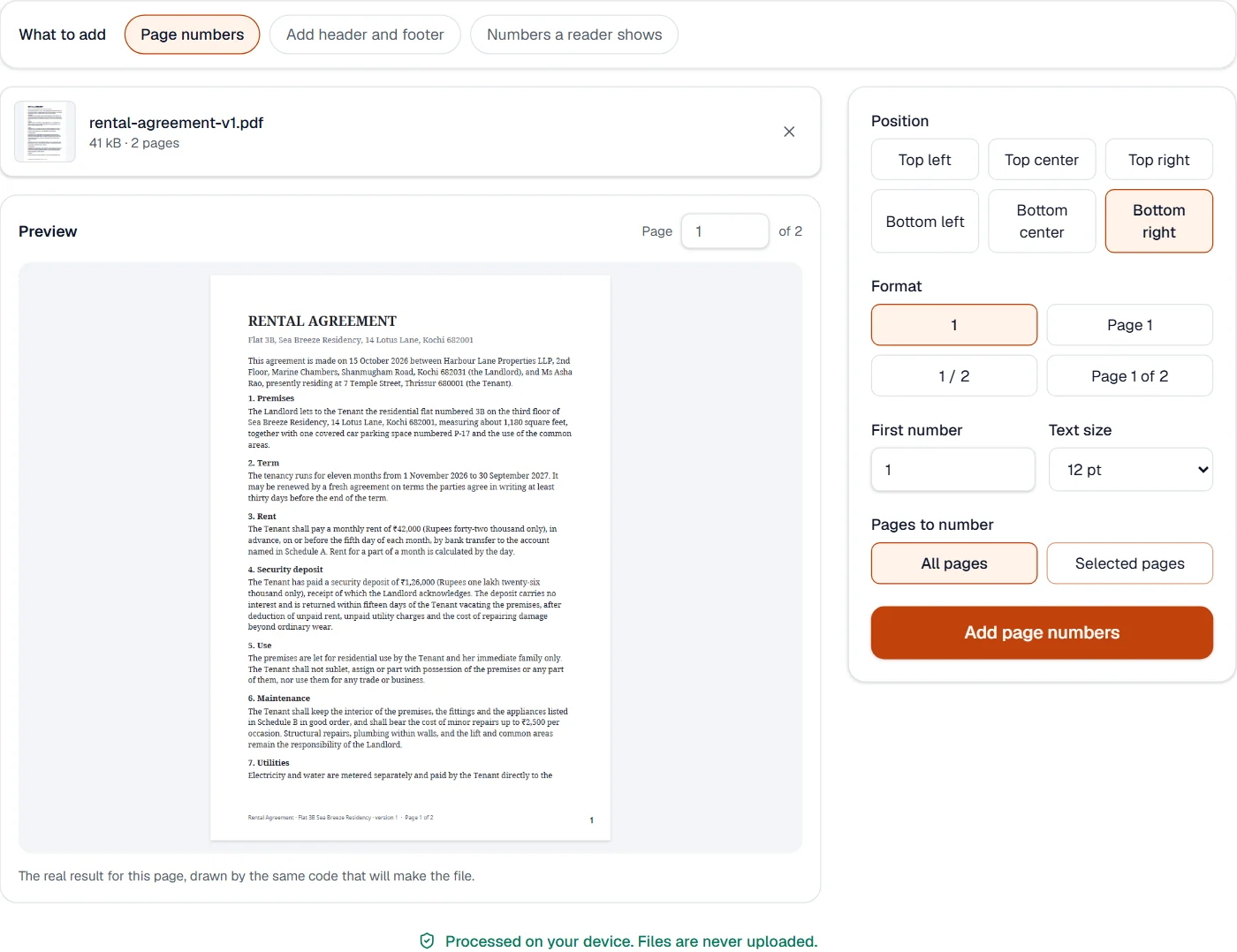
- The page shows the number where it will land, drawn by the same code that writes the file, and updates as you change the options.
Numbers that stay inside the page
Each number is drawn as text in Helvetica, the font every reader has, at the size you choose and a short way in from the edge of the page as it is displayed, which keeps it upright and in the right corner on pages that are turned or cropped. The number is page content, so it prints, copies and is found by search, and the file grows by a few hundred bytes.
The digits are Latin and the format is yours: a prefix such as Page, a total such as of 12, a first number other than 1 when the cover is not counted, and the pages to number, so a cover or an appendix can be left out.
Measured on our sample file
| Sample | Pages | Input | Output | Time |
|---|---|---|---|---|
| Text agreement | 2 | 41 kB | 41 kB | 0.2 s |
What it looks like
A header and footer
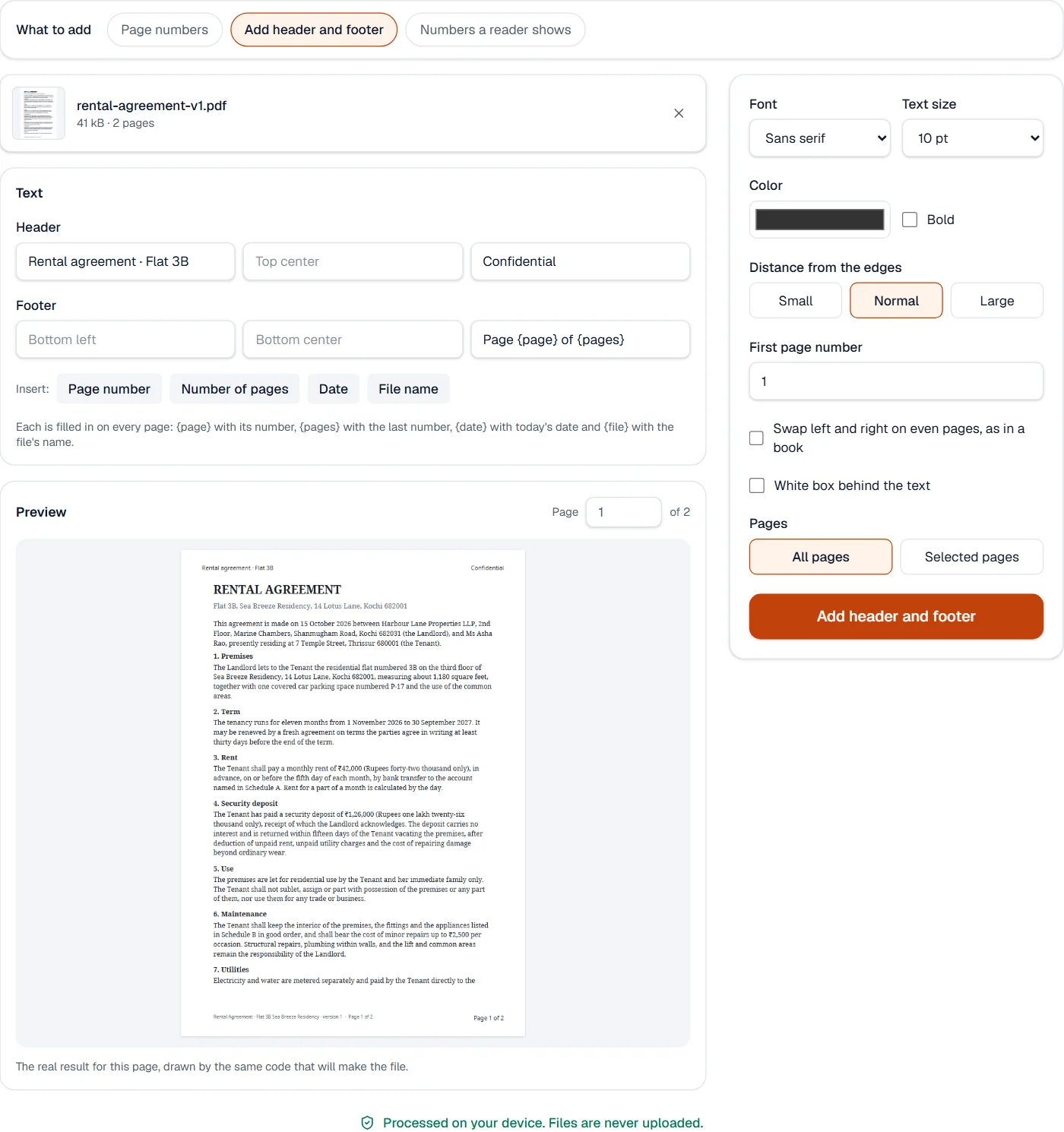
Choose Header and footer above the file for text at the top or bottom of every page: a title, the date, the file’s name and the page numbers, in any script the site writes.
Quick facts
- Takes
- One PDF. A password-protected PDF is opened once its password is typed on the file card.
- Gives
- The same PDF with text in up to six places: left, center and right of the header and of the footer, on all pages or the ones you name.
- Runs
- In your browser. The file is never uploaded, and nothing is kept anywhere.
- Plan
- Free, with no account and no watermark: 10 tasks a day, on files up to 50 MB and 100 pages. Pro has no daily count and takes files up to 500 MB, with no page limit.
- Filled in
- The page number, the number of pages, today’s date and the file’s name, on every page, with the numbering starting where you say.
- Scripts
- Latin, Greek and Cyrillic, and Devanagari, Telugu, Tamil, Kannada and Malayalam, shaped so that letters join as they should.
Real text, in a font made for the script
Each line is set as text in a sans-serif, serif or monospaced face chosen for its script, with the letters shaped the way the script needs them, and only the characters used are embedded. The text is page content: it prints, it is found by search, and it copies as words, in Hindi as in English.
The lines sit a set distance in from the edges of the page as it is displayed, so they stay upright and in their corners on pages that are turned or cropped. On even pages, left and right can swap, as in a printed book. A white box behind the text keeps it readable over a scan, and a line too wide for its place is made smaller rather than run into the next.
Measured on our sample file
| Sample | Pages | Text on every page | Input | Output | Time |
|---|---|---|---|---|---|
| Rental agreement | 2 | Yes | 41 kB | 46 kB | 0.2 s |
What it looks like
The numbers a reader shows
Choose Numbers a reader shows to set the page labels a reader prints in its page box, i and ii for a preface, 1 and 2 after it, A-1 for an annex, without ink on the page.
Quick facts
- Takes
- One PDF.
- Gives
- The same pages with labels a reader shows: ranges of numbers, roman numerals or letters, with a prefix and a starting number each.
- Runs
- In your browser. The file is never uploaded.
- Plan
- Free, with no account and no watermark: 10 tasks a day, on files up to 50 MB and 100 pages. Pro has no daily count and takes files up to 500 MB, with no page limit.
Numbers a reader shows, not ink on the page
Page labels are kept in the file’s description as ranges, each starting at a page with a style, a prefix and a first number, as the PDF standard defines them (ISO 32000-1, 12.4.2). Readers show them in the page box and beside the thumbnails, and the reader on this site does too. The pages themselves do not change; to draw numbers on them, use Add page numbers.
Measured on our sample file
| Sample | Ranges | Time |
|---|---|---|
| Employee handbook | 2 | 0.2 s |
What it cannot do
- Write numbers in an Indian script or as Roman numerals. The digits are Latin, in a standard font.
- Place a number anywhere but the six positions offered.
- Remove numbers a file already has. The editor's whiteout covers them, Redact PDF removes them.
- Place text anywhere but the six places at the edges: use the editor for that.
- Remove a header or footer the file already has: Redact PDF removes text.
- Write emoji: they have no font here.
- Print numbers on the pages. Labels live in the file; Add page numbers draws them on the pages.
- Make a reader show labels it ignores. Most readers show them; one that does not counts the pages instead.
If something goes wrong
- The numbers sit on the text
- A page with no margin leaves nowhere else. Choose a smaller size or another corner; the preview shows where the number lands.
- The cover should stay unnumbered
- Choose Selected pages from 2 to the end, and a first number of 2 if the cover counts, or 1 if it does not.
- This PDF is protected. Enter its password to continue.
- Open it in Unlock PDF with its password first. Open Unlock PDF
- The text sits on the page's content
- Increase the distance from the edges, choose a smaller size, or turn on the white box.
- A character cannot be added
- Remove the character the message names, such as an emoji, and try again.
- Long text is smaller than I chose
- Text too wide for the page between its margins is made smaller to fit. Shorten it or use two places.
- A range is refused
- Give each range a page of its own to start at, and a starting number of 1 or more.
- The reader still shows 1, 2, 3
- Some readers only count pages; Acrobat, Preview, Firefox and the reader on this site show labels.
About Add page numbers
Add page numbers stamps numbers on every page, or a range of pages, in the position, size and format you choose, including “Page 3 of 12”. The numbers become part of the page, so they print and display everywhere.
How to use Add page numbers
Add the PDF.
Pick the position, the first number, the format and the pages to number; the preview updates as you go.
Choose Add page numbers and download the numbered document.
Frequently asked questions
- Can I skip the cover page?
- Yes. Number pages from 2 onwards and start counting at 1, or at any number you like.
- Can I show the total, such as 3 of 12?
- Yes. Use the format field with {n} for the page number and {total} for the last one.
- What about rotated pages?
- Numbers are placed as the page is displayed, so they read upright on rotated pages too.
- Can I put the numbers at the top or in a corner?
- Yes. Choose any of the six positions: left, center or right, at the top or the bottom.
- Do the numbers show in every PDF reader and when printed?
- Yes. They become part of the page content, so every reader and printer shows them the same way.
- Can I write in Hindi, Telugu or another Indian script?
- Yes. Text is shaped with fonts made for each script, so letters join as they should.
- Can left and right swap on facing pages?
- Yes. Turn on the swap for even pages, and outside corners stay outside, as in a printed book.
- What is a page label?
- The number a reader shows in its page box and thumbnails, which can differ from the page’s place in the file: page 5 can be labelled iii.
- Does it print numbers on the pages?
- No. Labels live in the file’s description; to print numbers on the pages, use Add page numbers.
Related tools
- Add watermarkStamp text such as CONFIDENTIAL or DRAFT across pages, put a logo or picture on them, or add a rubber stamp with the date.
- Bookmarks and contentsEdit a PDF's bookmarks, make them from its headings, add a contents page.
- Bates numberingNumber every page of one or more PDFs with a unique, continuing number.
- Edit PDFEdit the text of a PDF like in a word processor, add text, images, signatures, stamps, shapes, highlights and comments, and check the spelling of the whole file.