
Sign requests
Send a document to the people who need to sign it. Each signer gets their own link by email, signs in their browser without an account, and everyone receives the finished copy with a certificate and an audit trail. Sending is part of Pro; signing is free.
Loading…
How sign requests work
For the sender
- Sign in with a Pro account, then choose the PDF: up to 25 MB and 200 pages.
- Add up to 20 signers by name and email address, and place their fields on the pages: signature, initials, full name and date signed. To make sure it is them, you can also give a signer an access code yourself: they type it before the document opens, and five wrong codes lock the link.
- Choose whether they sign one after another or all at once, how many days they have (up to 90), how dates are written and whether to remind them automatically, then send. Each signer receives an email with a private link.
- Follow who has received, opened and signed; send a reminder with a fresh link; save the layout as a template for the next document; cancel if you need to; and download the signed copy and its audit report once everyone has signed.
For the signers
- No account and nothing to install: the link opens the document in any browser, on a phone too.
- They adopt their signature and initials once: drawn with a mouse, a finger or a pen (on their phone too, by scanning a code), typed in a handwriting style made for their script, or uploaded as a picture. Then they agree to sign electronically, or decline.
- When everyone has signed, each party receives the finished copy by email.
What it looks like
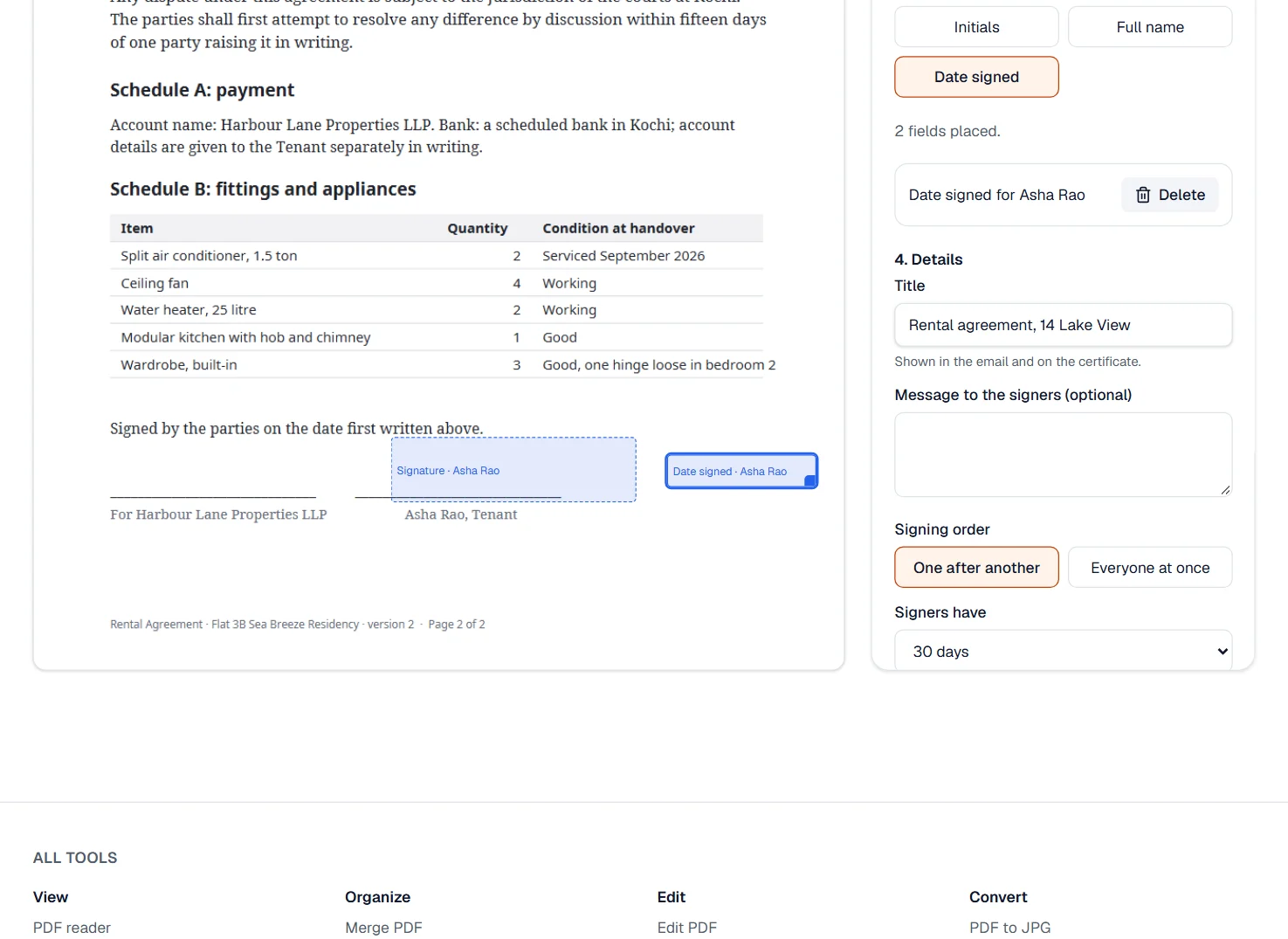
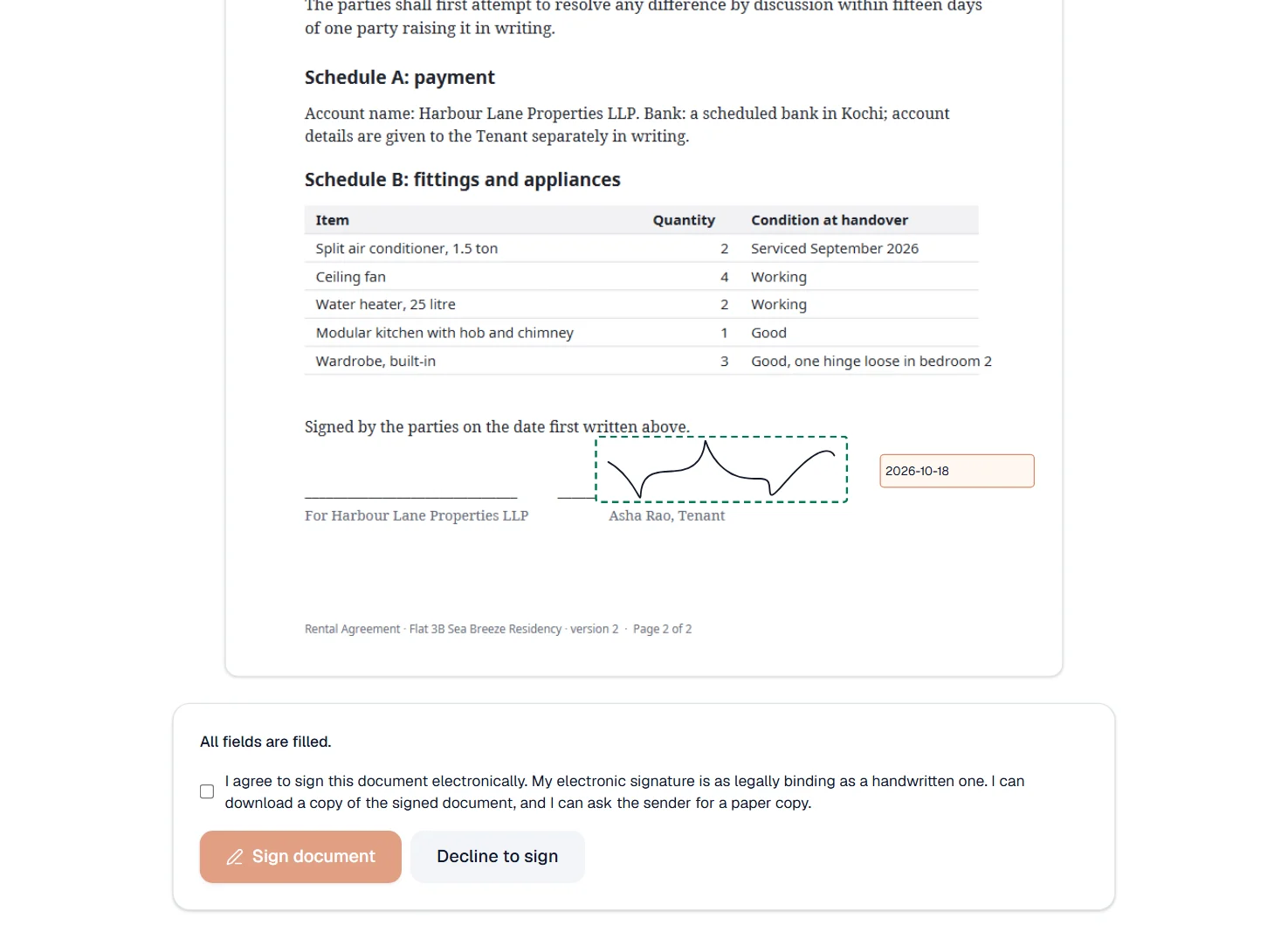
The certificate and the audit trail
The signed PDF ends with a certificate of completion, in English and in the sender's language: the request ID on every page; the SHA-256 fingerprint of the document as sent; who sent it, from which IP address and country; each signer's name, email address, signature and initials, how they made them (typed in which style, drawn with a finger, a mouse or a pen, or uploaded), the consent they accepted with its version, their IP address and country, and their browser and device in plain words; and every step to the second in UTC: sent, delivered, opened, reminded, signed, declined. The finished file is sealed with an RFC 3161 timestamp from a public timestamp authority, which receives only its fingerprint, and the audit report can also be downloaded on its own.
What is kept, and for how long
The document, the signatures and the audit trail stay until the request is completed, declined, cancelled or has expired, then for 90 days so that every party can download the signed copy, and are then deleted; the sender can keep a completed request's files longer, or delete an ended one sooner. A draft that was never sent is deleted after a day. The fingerprint of the signed copy, its dates and its number of signers are kept for seven years, without names or content, so that the verify page can still check a copy.
What it costs
Sending is part of Pro, up to 100 requests every 30 days. Signers pay nothing and need no account, and the signed copy carries no watermark.
Is an electronic signature enough?
That depends on the document and on the law where you are. The certificate and the audit trail are the evidence such laws usually ask for; some documents must still be signed on paper or before a witness. Check what applies to yours; we cannot give legal advice.
What it cannot do
- Produce a signature with a personal certificate, the kind a reader verifies against a trust list such as Adobe's. These are electronic signatures backed by the certificate of completion, the audit trail and a trusted timestamp that seals the file, which everyday agreements accept; a document that the law where you are requires to be signed with a qualified certificate, before a witness or on paper is not one for this tool.
- Fill in the document for the signer. Signers sign, initial and date where you placed the fields; the text of the document stays as you sent it. Fill the form or edit the text before sending.
- Take a PDF over 25 MB or 200 pages, or one protected with a password. Compress, split or unlock it first.
- Send to more than 20 signers in one request, or keep a request open for more than 90 days.
- Change a request after it is sent. Cancel it and send a new one; anyone who had already signed signs again.
If something goes wrong
- This PDF is protected with a password. Unlock it first, then send it.
- Open the file in Unlock PDF with its password, download the unlocked copy, and send that. Open Unlock PDF
- The file is larger than 25 MB.
- Compress PDF makes a scanned agreement several times smaller. A file that stays above 25 MB is better split, with the pages to sign sent on their own. Open Compress PDF
- Place at least one field for every signer.
- Every signer needs at least one field. Choose the signer in the panel, then click the page where their signature goes.
- The signer did not receive the email
- Ask them to look in the spam folder and search for the title of the request. The request page shows whether the invitation reached their mail server and whether the link was opened; send a reminder from there, which mails a fresh link, or, if the address was wrong, cancel the request and send a new one to the right address.
- This signing link is not valid any more. It may have been used, cancelled or expired. Ask the person who sent it for a new one.
- A link works for one signer, until the request is completed, declined, cancelled or expired. The person who sent the request can send a new one from their request page.
- You have sent many requests in a short time. Please wait a while.
- Sending is rate-limited so that the mail stays trustworthy. Wait a few minutes and send again; nothing was lost.
Frequently asked questions
- What does the signer need?
- A browser, on a phone or a computer. The link in the email opens the document; they draw or type their signature, fill their fields, tick the consent box and press Sign document. No account, no app, no printing.
- Can several people sign the same document?
- Up to 20 signers in one request, one after another in the order you set or all at once. Each receives their own link and fills only their own fields; everyone sees the whole document.
- How do I know the document was not changed?
- Drop the file on the verify page: your browser computes its SHA-256 fingerprint, and only the fingerprint is checked against the record kept when the request was completed. One changed byte changes the fingerprint entirely. The file also carries a timestamp seal, which PDF readers show in their signature panel.
- Can the signer refuse?
- Yes. The signer's page has a Decline button with an optional reason; the request is marked declined, the sender sees the reason, and nobody else is asked to sign it.
- What if a signer never opens the link?
- The request waits until the days you gave it run out, then expires, and everyone is told. Before that you can cancel it from the request page and send a new one, to the same address or another.
- Can a signer use their phone to sign?
- Yes, in two ways. They can open the link on the phone and sign there with a finger, or, with the document open on a computer, choose Phone in the signature window and scan the code with the phone's camera: they draw on the phone and the signature appears on the computer. The code works once, and only for two minutes.
- Can I send the same kind of document again without placing the fields again?
- Yes. Once the fields are placed, save them as a template; next time, choose a document with as many pages, start from the template and enter who signs for each role. An account keeps up to 50 templates.