
OCR PDF
Make a scanned PDF searchable, with text you can copy, in 25 languages.
or drop files here
You can also paste with Ctrl+V
A document we wrote for this: nothing of yours is used.
Runs on your device. With Pro, you can choose our servers instead.
Quick facts
- Takes
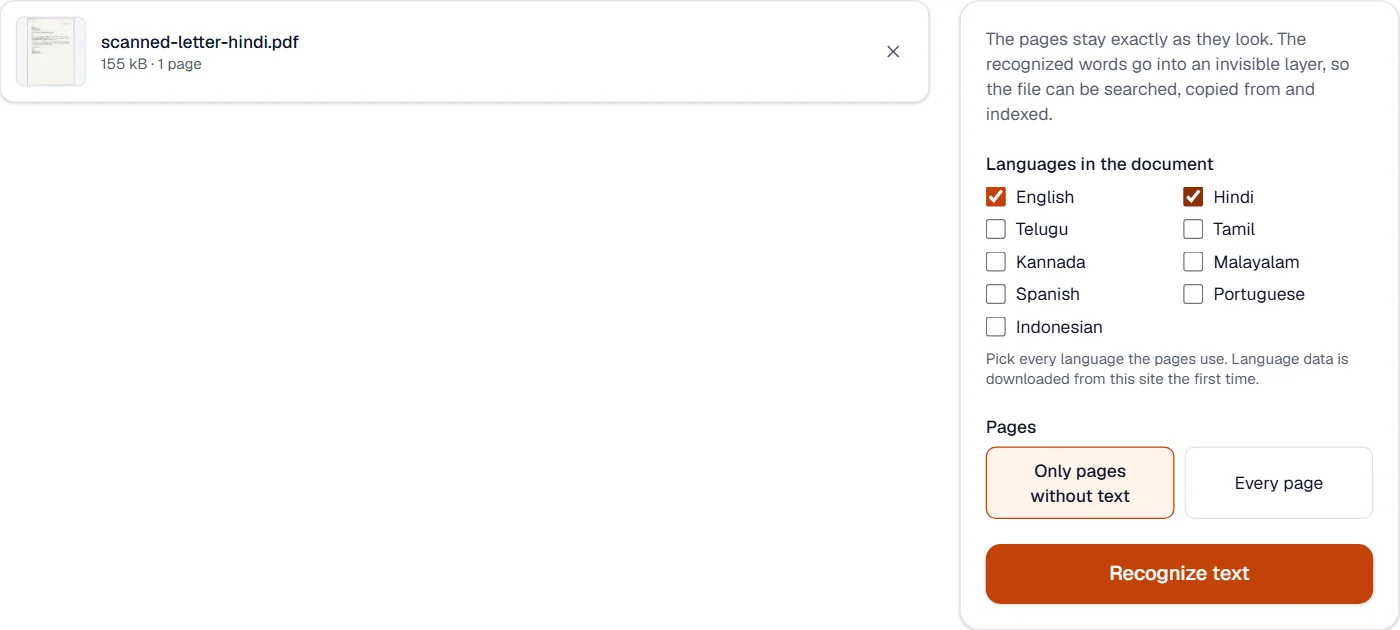
- A scanned or photographed PDF. Pages that already hold text are skipped unless you choose “Every page”.
- Gives
- The same PDF with an invisible text layer over each page: searchable, selectable, and ready for the editor or for conversion to Word.
- Languages
- Twenty-five: English, Hindi, Bengali, Telugu, Marathi, Tamil, Gujarati, Kannada, Malayalam, Odia, Punjabi, Assamese, Urdu, Spanish, Portuguese, French, German, Italian, Russian, Arabic, Indonesian, Chinese (simplified and traditional), Japanese and Korean. Up to four can be chosen together for mixed pages. Words in Arabic, Urdu, Chinese, Japanese and Korean go into the text layer with a font that draws nothing, so they can be searched and copied like the rest.
- Runs
- In your browser, in a background worker, page by page at 300 dpi. The scan is never uploaded. The language data (0.3 to 2 MB per language) is downloaded from this site the first time and kept by your browser. With Pro you can choose OCRmyPDF on our servers instead, for scans of up to 2,000 pages; the file is deleted as soon as the result is fetched.
- Plan
- Free, with no account and no watermark: 10 tasks a day, on files up to 50 MB and 100 pages. Pro has no daily count and takes files up to 500 MB, with no page limit.
Measured on our scanned letters
We wrote a one-page letter in each of 18 languages, rendered each as a 200 dpi scan with a slight skew and paper grain, and had the tool read them. The figures below compare the recognized text with the words the letters were made from, character by character. The Indian, Latin and Cyrillic letters are set in the Noto fonts the editor uses; Arabic, Urdu, Chinese, Japanese and Korean, which those fonts do not draw, in the fonts the measuring computer has, as a printer would set them. Urdu is set in Naskh rather than the Nastaliq of most Urdu print, which reads less well.
| Sample | Characters | Accuracy | Engine confidence |
|---|---|---|---|
| Hindi letter, printed, 200 dpi | 877 | 98.6% | 90% |
| Telugu letter, printed, 200 dpi | 736 | 99.6% | 91% |
| Bengali letter, printed, 200 dpi | 390 | 100.0% | 93% |
| Marathi letter, printed, 200 dpi | 400 | 100.0% | 95% |
| Gujarati letter, printed, 200 dpi | 383 | 99.7% | 95% |
| Punjabi letter, printed, 200 dpi | 387 | 100.0% | 94% |
| Odia letter, printed, 200 dpi | 369 | 96.2% | 93% |
| Assamese letter, printed, 200 dpi | 380 | 98.7% | 93% |
| Urdu letter, printed, 200 dpi | 353 | 93.5% | 90% |
| Arabic letter, printed, 200 dpi | 340 | 93.2% | 86% |
| French letter, printed, 200 dpi | 505 | 99.6% | 95% |
| German letter, printed, 200 dpi | 486 | 100.0% | 95% |
| Italian letter, printed, 200 dpi | 490 | 99.8% | 95% |
| Russian letter, printed, 200 dpi | 431 | 100.0% | 95% |
| Simplified Chinese letter, printed, 200 dpi | 123 | 96.7% | 88% |
| Traditional Chinese letter, printed, 200 dpi | 123 | 96.7% | 91% |
| Japanese letter, printed, 200 dpi | 155 | 96.8% | 90% |
| Korean letter, printed, 200 dpi | 198 | 99.5% | 93% |
In practice this means one or two wrong characters per hundred on a clean printed page, usually in a conjunct or a mark, and up to 7 in the hardest script measured; a search for a word still finds it, and the editor corrects the rest. Low-resolution photos, faded copies and handwriting do far worse, and the page says so below instead of pretending otherwise.
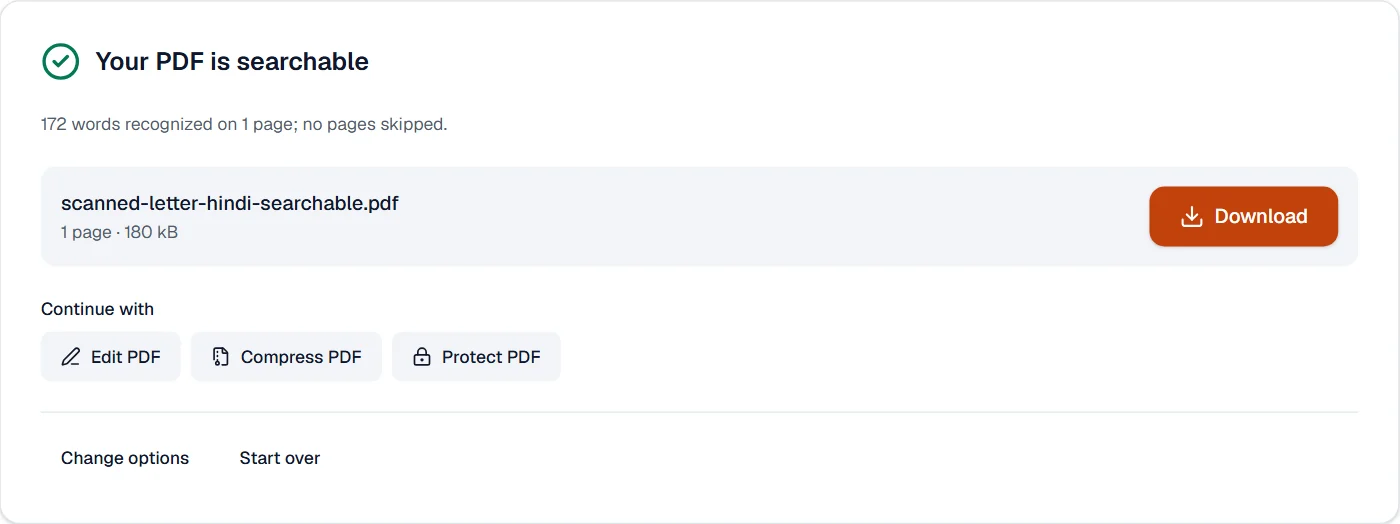
What it looks like
What it cannot do
- Read handwriting. The engine is trained on printed text; a handwritten note comes out as noise.
- Make a poor scan good. Below about 150 dpi, or with heavy skew, shadows or a folded page, accuracy drops quickly. Scan to PDF straightens and sharpens a phone photo first, which helps more than any setting here.
- Keep tables as tables. The words are recognized in reading order; the layout is not rebuilt. For a spreadsheet, recognize the text here and then use PDF to Excel.
- Guess the language. A page in a language you did not tick is read with the wrong alphabet. Tick every language the document uses.
- Change how the page looks. The text layer is invisible by design; the scan stays exactly as it was.
If something goes wrong
- No page needed recognition, or no words could be read.
- Either every page already has text (choose “Every page” to recognize anyway), or the scan is too faint or too small to read. Try a sharper scan, or run Scan to PDF on the photo first. Open Scan to PDF
- The words come out in the wrong alphabet
- The language of the page was not selected. Tick it and run again; for a bilingual page, tick both languages.
- The first run is slow
- The language data is being downloaded, once. After that, a clean page takes a few seconds on a laptop and longer on a phone. Keep the tab in the foreground while it works.
- Your browser ran out of memory. Try fewer or smaller files.
- Recognize fewer pages at a time: split the PDF, run OCR on the parts, then merge them again. Open Split PDF
- A word is wrong in the result
- Open the result in Edit PDF, where the recognized text is editable over the scan, and correct it. Open Edit PDF
About OCR PDF
OCR PDF recognizes the text in scanned pages and photographed documents and adds an invisible text layer, so the PDF becomes searchable, selectable and ready for editing or conversion. Recognition runs in your browser in many languages, including Indian scripts.
How to use OCR PDF
Add the scanned PDF and choose the language or languages of the text.
Recognition runs page by page on your device; the progress is shown.
Download the searchable PDF, or open it in the editor to correct the text.
Frequently asked questions
- Which languages are supported?
- 25 languages: English, Hindi, Bengali, Telugu, Marathi, Tamil, Gujarati, Kannada, Malayalam, Odia, Punjabi, Assamese, Urdu, Spanish, Portuguese, French, German, Italian, Russian, Arabic, Indonesian, Simplified Chinese, Traditional Chinese, Japanese and Korean. Up to four can be chosen together for mixed pages.
- Does the scan's appearance change?
- No. The page picture stays exactly as it was; the recognized text is placed invisibly on top of it.
- How accurate is it?
- On the clean scans measured on this page, about 99 characters in 100 come out right; low-resolution photos and handwriting do much worse. Scan to PDF straightens and sharpens photos first, which helps a lot.
- Can I turn a scanned PDF into Word or Excel?
- Yes. Recognize the text here first, then run PDF to Word or PDF to Excel on the searchable file.
- Is the scan uploaded for recognition?
- Not unless you choose our servers with Pro for a long scan. By default recognition runs in your browser; only the language data is downloaded from this site the first time, and the file stays on your device.
Related tools
- Scan to PDFPhotograph documents with your camera, straighten and clean them up, and save them as a PDF.
- PDF to WordTurn a PDF into an editable Word document.
- Edit PDFEdit the text of a PDF like in a word processor, add text, images, signatures, stamps, shapes, highlights and comments, and check the spelling of the whole file.
- Compress PDFMake a PDF smaller, down to an exact size if you need one.
Guides
- Make a scanned PDF searchable with OCR, without uploading itHow to turn a scan or a photographed document into a PDF you can search, copy from and edit, in your browser, with the accuracy measured on Hindi and Telugu scans.
- Redact a PDF permanently: remove the text, not just cover itWhy a black box drawn over a PDF hides nothing, how to remove text, pictures and comments for good in your browser, and how to check that they are gone.