
PDF to Word
Turn a PDF into an editable Word document.
Checking that the servers are available…
Pro. Runs on our servers: encrypted in transit, deleted automatically.
Quick facts
- Takes
- One PDF at a time, up to 200 MB. A password-protected PDF is unlocked on your device with the password typed on its card, and sent without its lock.
- Gives
- A .docx file that opens in Word, LibreOffice and Google Docs, with the text of every page in place and the pictures beside it.
- Runs
- On our servers: the file is uploaded over an encrypted connection, converted by LibreOffice, and the job is deleted as soon as the result is fetched.
- Plan
- Pro: 200 tasks a day on our servers, and a task that fails is not counted. The tools that run in your browser stay free.
- Converter
- LibreOffice 24.2.7 (Ubuntu 24.04), writer_pdf_import. The version is the one in the worker image this site deploys, not a guess.
What a Word file made from a PDF really is
A PDF does not store paragraphs, only letters at positions. LibreOffice reads them back as one text box per line, placed exactly where the line was on the page. The result looks like the PDF and every word can be corrected, but the lines do not flow into each other: lengthening a sentence does not push the next line down, and the fonts are named rather than embedded, so Word substitutes its own where the name is unknown.
That is what every converter of this kind produces, ours included; the table below is ours measured, not described. If what you need is to change a sentence and keep the layout, Edit PDF does that in the browser, reflowing the paragraph in the PDF itself. If you need flowing text to paste somewhere, PDF to Markdown rebuilds the paragraphs, headings and lists. If you need the numbers, PDF to Excel puts them in cells.
Measured on our sample files
| Sample | DOCX | Time | Text boxes | Pictures | Text | |
|---|---|---|---|---|---|---|
| Text report, 3 pages | 28 kB | 16 kB | 8.3 s | 210 | 0 | Yes |
| Text agreement, 2 pages | 41 kB | 13 kB | 7.6 s | 150 | 0 | Yes |
| Form with fields, 1 page | 32 kB | 8.2 kB | 7.4 s | 48 | 0 | Yes |
| Scanned invoice, 2 pages | 410 kB | 366 kB | 9.6 s | 0 | 2 | No |
Read it as the shape of the result: a three-page report becomes about two hundred text boxes, one per line, with no table object even where the page shows a table. The scanned invoice becomes two pictures and nothing to edit, because a scan carries no text; run OCR PDF first and the recognized words convert like any other text. A form's fields do not survive the trip either: their labels do, the fields themselves become plain text boxes.
What it looks like

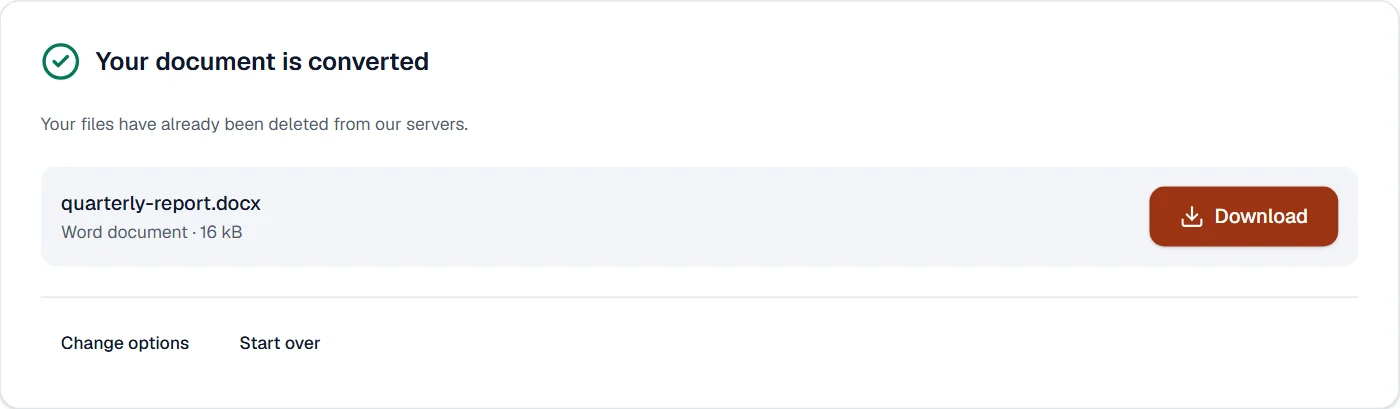
What it cannot do
- Make text flow. Each line is its own box; a paragraph you lengthen in Word does not push the next line down. For that kind of editing, use Edit PDF on the PDF itself.
- Embed the fonts. The .docx names the fonts the PDF used; a computer without them shows a substitute. Our sample documents are set in Noto Sans and Noto Serif, which are free to install.
- Rebuild tables. A table drawn in the PDF comes through as its lines of text, not as a Word table. PDF to Excel reads tables as cells.
- Read a scan. Pages that are pictures become pictures. Run OCR PDF first.
- Keep form fields. Their text comes through; the fields do not.
- Convert a password-protected file. Unlock it first, then convert.
If something goes wrong
- The document could not be converted. Check that it opens in its own program, then try again.
- The file is damaged or unusual. Run it through Repair PDF and convert the repaired copy. If it still fails, the PDF uses something the converter cannot read; Edit PDF will still open it. Open Repair PDF
- The Word file is a picture of the page, with nothing to edit
- The PDF was a scan. Run OCR PDF first, then convert the searchable copy. Open OCR PDF
- The text is there but in the wrong font
- Word substituted a font it does not have. Select all and choose a font you have; the line breaks are set by the boxes, so the layout holds.
- Today's tasks are used up
- Pro runs 200 tasks a day on our servers, counted from midnight UTC, and a task that fails is not counted. The count starts again the next day. Edit PDF and PDF to Markdown run in your browser and have no daily count on Pro.
About PDF to Word
PDF to Word turns a PDF into an editable DOCX document with its text, pictures and basic layout, so you can rewrite a contract or reuse a report in Word or Google Docs. The conversion runs on our servers and the files are deleted afterwards.
How to use PDF to Word
Add the PDFs, up to 20 at a time.
They are uploaded over an encrypted connection and converted with LibreOffice.
Download the DOCX files; the uploads are deleted at once.
Frequently asked questions
- Will it convert a scanned PDF?
- Run OCR PDF first so the pages have text; a scan without a text layer converts to pictures only.
- How close is the result to the original?
- Text, pictures and simple layouts come through well. Multi-column pages and complex tables may need tidying in Word.
- Can I just edit the PDF instead?
- Often yes. Edit PDF changes the text in place, in your browser, without converting anything.
- Can I convert a PDF to Word on my phone?
- Yes. Open this page in the phone's browser and add the PDF; the conversion runs on our servers, and the DOCX comes back to the phone.
- Does the Word file open in Google Docs too?
- Yes. The result is a standard DOCX, which Word, Google Docs, LibreOffice and phone apps all open and edit.
Related tools
- Word to PDFTurn Word documents into PDFs that look the same everywhere.
- OCR PDFMake a scanned PDF searchable, with text you can copy, in 25 languages.
- PDF to ExcelTurn the tables and figures of a PDF into an Excel workbook, in your browser.
- Edit PDFEdit the text of a PDF like in a word processor, add text, images, signatures, stamps, shapes, highlights and comments, and check the spelling of the whole file.