
Organize PDF
Reorder, rotate, duplicate, delete or reverse pages visually, and add blank pages or another PDF’s pages where you choose.
or drop files here
You can also paste with Ctrl+V
A document we wrote for this: nothing of yours is used.
Processed on your device. Files are never uploaded.
Quick facts
- Takes
- One PDF. A password-protected PDF is opened once its password is typed on the file card.
- Gives
- The same PDF with its pages in the order you set, reversed if you like, any page turned, duplicated or removed, and blank pages or another PDF’s pages put in where you choose. Each page is copied as it is.
- Runs
- In your browser. The file is never uploaded, and nothing is kept anywhere.
- Plan
- Free, with no account and no watermark: 10 tasks a day, on files up to 50 MB and 100 pages. Pro has no daily count and takes files up to 500 MB, with no page limit.
- Controls
- Drag a page to move it, or use the buttons on each page: turn left or right, duplicate, delete. The keyboard works too: pick a page up with Space and move it with the arrow keys.
A new file from the old pages
The grid shows every page as a picture, and what you do to the pictures is what the file gets: the order of the grid is the order of the pages, a turned picture is a turned page, a duplicate is a second copy of the page with its own place. Saving makes a new PDF from those pages, so links between pages that are both still there keep working, and a page you removed is gone from the file, not hidden in it.
What is on a page does not change here; for that, open Edit PDF. Layers and page labels come along, a hidden layer still hidden. Bookmarks, files attached to the document and the tags screen readers follow are not carried over, and a digital signature does not survive a changed file; the result says so when they were there.
Measured on our sample file
| Sample | Pages before | Pages after | Input | Output | Time |
|---|---|---|---|---|---|
| Text report | 3 | 2 | 28 kB | 27 kB | 0.3 s |
What it looks like
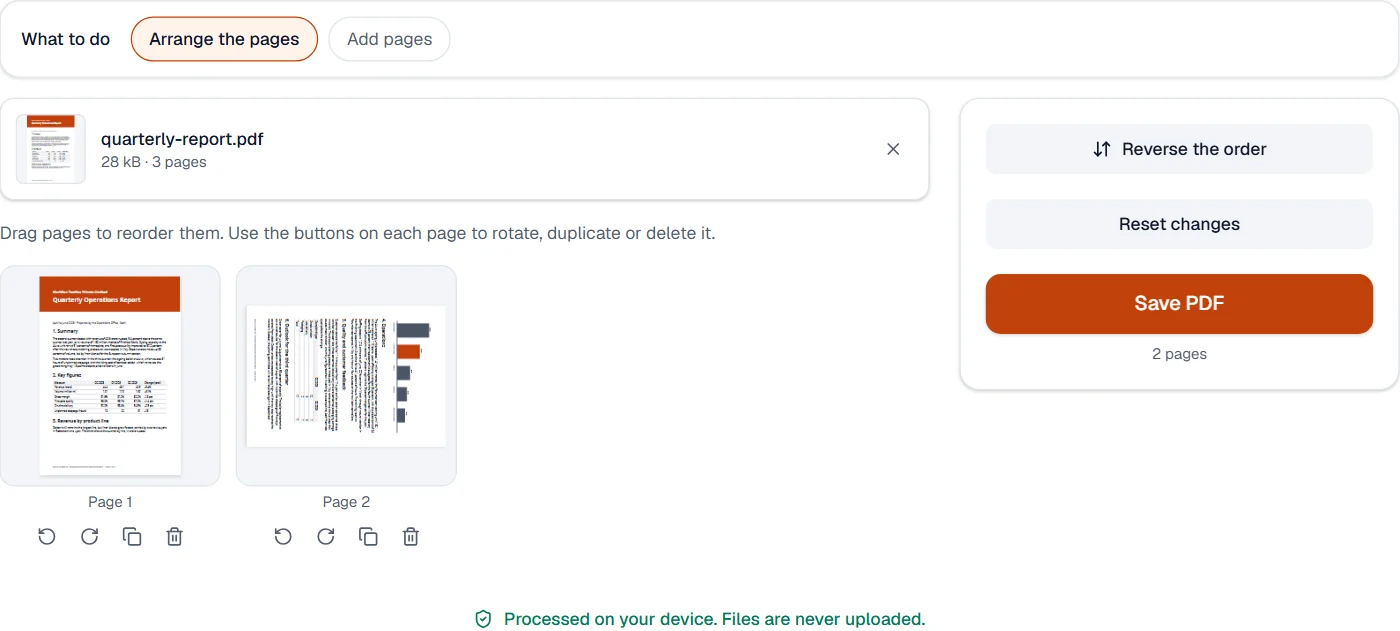
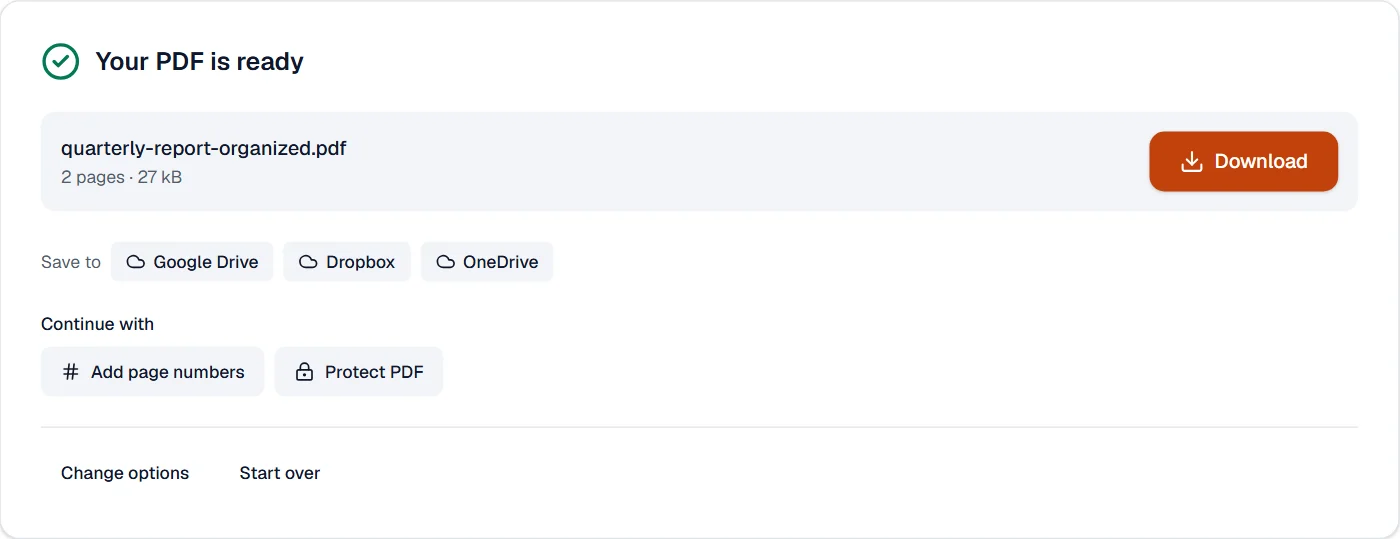
The pages reversed
Reverse the order, a button beside the pages, lists them last first, as a stack scanned back to front needs.
Quick facts
- Takes
- One PDF, or several with Pro, each reversed on its own.
- Gives
- The same pages in the opposite order: the last page first.
- Runs
- In your browser. The file is never uploaded.
- Plan
- Free, with no account and no watermark: 10 tasks a day, on files up to 50 MB and 100 pages. Pro has no daily count and takes files up to 500 MB, with no page limit.
The same pages, the other way round
Each page is copied into the new file whole, with its text, pictures, fonts, links and size, from the last to the first. Links from one page to another keep working, pointing at the same page in its new place. For any other order, use Organize PDF; for two files of fronts and backs, use Merge odd and even pages.
Measured on our sample file
| Sample | Pages | Output | Time |
|---|---|---|---|
| Handbook, back sides | 4 | 21 kB | 0.3 s |
Pages added
Choose Add pages above the file to put blank pages or another PDF’s pages after any page, or in place of a run of pages.
Quick facts
- Takes
- One PDF, and a second one when its pages go in.
- Gives
- The document with up to 100 blank pages, or the other PDF’s pages, after the page you choose, or in place of a run of its pages.
- Runs
- In your browser. The files are never uploaded.
- Plan
- Free, with no account and no watermark: 10 tasks a day, on files up to 50 MB and 100 pages. Pro has no daily count and takes files up to 500 MB, with no page limit.
Pages put in, the rest left alone
The document’s pages before the place are copied first, then the new pages, then the rest. Blank pages are made at the size of the page before them, or at A4 or Letter. To replace pages, the run you give is left out and the other PDF’s pages take its place. Links between the pages kept still lead where they did.
Measured on our sample file
| Sample | Pages added | Pages after | Time |
|---|---|---|---|
| Quarterly report | 1 | 4 | 0.2 s |
What it cannot do
- Change what is on a page. Pages move, turn, repeat or go, as whole pages; Edit PDF changes their content.
- Bring pages in from another file. Merge PDF joins files, and this tool then orders the result.
- Keep bookmarks that point to pages you moved or removed.
- Keep a digital signature valid.
- Keep the bookmarks. A rebuilt document leaves them out, and the result says so.
- Reverse part of a document. To move some pages, use Organize PDF.
- Add a page that is not in a PDF. To add a picture as a page, make it a PDF with JPG to PDF first.
- Keep the bookmarks of the document. A rebuilt document leaves them out, and the result says so.
If something goes wrong
- A PDF needs at least one page, so you can't remove them all.
- Deleting every page leaves nothing to save. Keep one, or use Remove pages for a chosen few. Open Remove pages
- This PDF is protected. Enter its password to continue.
- Open it in Unlock PDF with its password first. Open Unlock PDF
- The page pictures take a while to appear
- They are drawn as you scroll; a large scan on a slow phone takes a moment. The order can be changed meanwhile.
- This PDF is protected. Enter its password to continue.
- Type the password on the file card; it never leaves your device.
- Bookmarks from the original file aren't included.
- Bookmarks and contents again with Bookmarks and contents, which makes them from the headings. Open Bookmarks and contents
- Add the PDF whose pages go in, after the document.
- Add the PDF that gives the pages, after the document; swap them if they are the wrong way round.
- This PDF is protected. Enter its password to continue.
- Type the password on the file card; it never leaves your device.
About Organize PDF
Organize PDF lets you reorder, rotate, duplicate and delete pages by dragging thumbnails, and insert pages from other PDFs. It is the visual way to assemble exactly the document you want before sending it.
How to use Organize PDF
Add a PDF; every page shows as a thumbnail.
Drag pages into place, rotate or delete the ones you want changed, and add pages from another PDF if needed.
Choose Save and download the reorganized document.
Frequently asked questions
- Can I combine pages from several PDFs?
- Yes. Add more PDFs and their pages join the thumbnails, ready to be placed anywhere in the document.
- Does reordering change the quality?
- No. Pages are moved as they are; text, pictures and fonts are untouched.
- Can I do this on a phone?
- Yes; thumbnails can be dragged with a finger, and the keyboard reordering works with a screen reader too.
- Can I duplicate a page?
- Yes. Each thumbnail has a duplicate button; the copy appears next to the original and can be dragged anywhere.
- Can I delete pages here as well?
- Yes. Delete pages from their thumbnails, rotate others, and save once; a document keeps at least one page.
- Do bookmarks still work?
- Links between pages keep working. Bookmarks are not carried into a rebuilt document; the result says so when the file had them.
- How big are the blank pages?
- As big as the page before them, or A4 or Letter if you choose.
- Can I replace a page with a corrected one?
- Yes: choose Replace pages, give the pages to replace, and add the PDF with the corrected pages.
Related tools
- Merge PDFCombine several PDFs into one, in the order you want, or the front and back sides of a scan made one side at a time.
- Rotate PDFTurn pages the right way up, all at once or one by one.
- Remove pagesDelete the pages you don’t need from a PDF, picked by hand or found blank.
- Split PDFSplit a PDF into several files by page ranges or page count, at its bookmarks, or into parts under a size.