
Extract pages
Save selected pages as a new PDF.
or drop files here
You can also paste with Ctrl+V
A document we wrote for this: nothing of yours is used.
Processed on your device. Files are never uploaded.
Quick facts
- Takes
- One PDF. A password-protected PDF is opened once its password is typed on the file card.
- Gives
- A new PDF with only the pages you marked, in the order they have in the file. The pages are copied as they are, with their fonts and pictures.
- Runs
- In your browser. The file is never uploaded, and nothing is kept anywhere.
- Plan
- Free, with no account and no watermark: 10 tasks a day, on files up to 50 MB and 100 pages. Pro has no daily count and takes files up to 500 MB, with no page limit.
- Choosing
- Click the pages in the grid; each marked page is ticked, and the button says how many will be taken.
A file of just those pages
The marked pages are copied into a new PDF. A link between two of them keeps working; a link to a page that was not taken is cut, so the new file holds nothing of the pages you left behind. The pages keep their order; to change it, Organize PDF takes over from here.
Measured on our sample file
| Sample | Pages before | Pages taken | Input | Output | Time |
|---|---|---|---|---|---|
| Text report | 3 | 2 | 28 kB | 24 kB | 0.1 s |
Read it as what to expect: two pages of a three-page file are most of its size, because the fonts travel with every page that uses them.
What it looks like
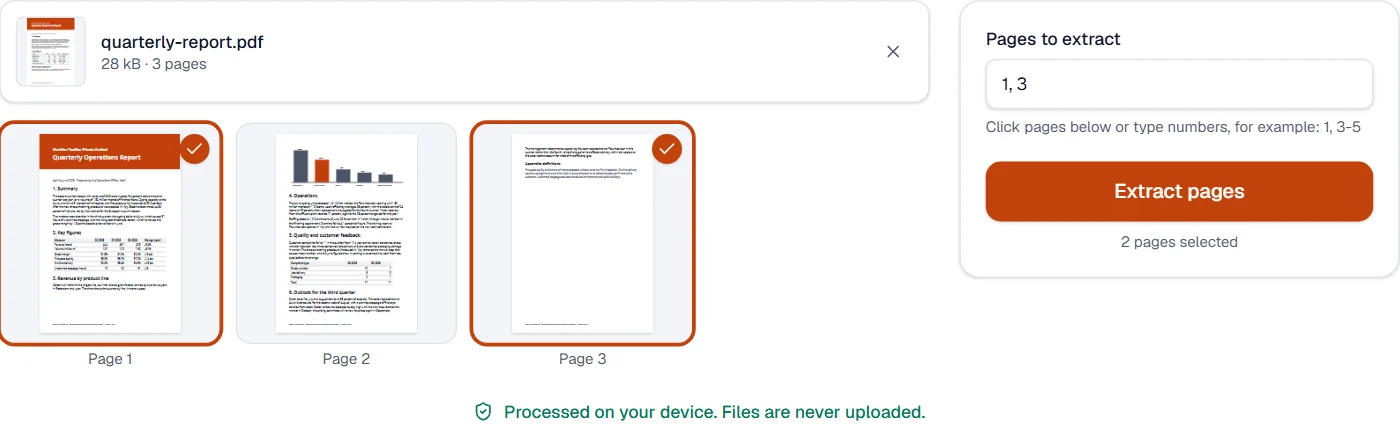
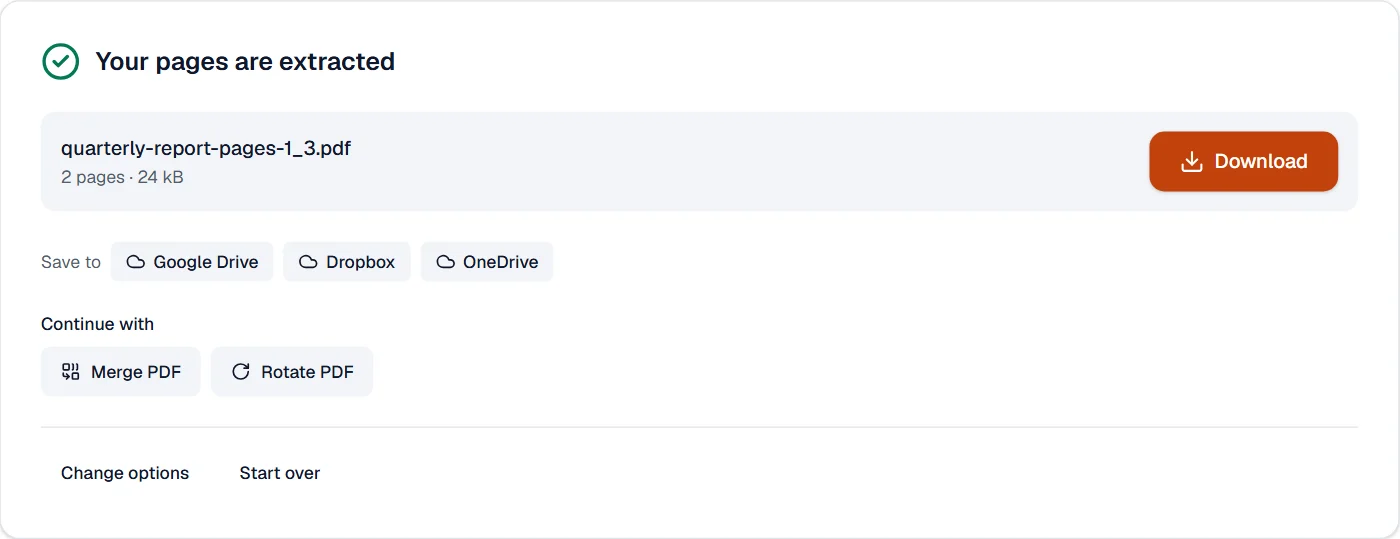
What it cannot do
- Change the order of the pages you take; they come out in document order. Organize PDF orders them afterwards.
- Keep bookmarks or a digital signature.
- Take pages from a password-protected file without its password. You are asked for it on the file card.
If something goes wrong
- Select at least one page.
- Click the pages to keep; each selected page is marked and the button says how many.
- The extracted file is almost as large as the original
- A page carries its own fonts, and a picture shared by several pages comes along once. Compress PDF makes the result smaller. Open Compress PDF
- This PDF is protected. Enter its password to continue.
- Open it in Unlock PDF with its password first. Open Unlock PDF
About Extract pages
Extract pages pulls the pages you choose out of a PDF into a new document, or into one file per page. Useful for sharing a chapter, an invoice from a batch or a single form from a long scan.
How to use Extract pages
Add the PDF.
Pick the pages to extract by clicking thumbnails or typing ranges, and choose whether they go into one file or one file each.
Choose Extract pages and download the result.
Frequently asked questions
- Does extracting reduce the quality?
- No. Pages are copied with their fonts, pictures and vector graphics intact.
- Can I extract pages in a different order?
- Type the numbers in the order you want, such as 5, 1, 3, and the new document follows it.
- Can I extract pages as pictures instead?
- Use PDF to JPG to save pages as images at the resolution you choose.
- Can I save one page of a PDF as a separate file?
- Yes. Select the page and download; the new PDF holds that page only. Select several to get them together in one file.
- Is there a limit on how many pages I can extract?
- Files up to 50 MB and 100 pages on the free plan, and up to 500 MB with Pro, are handled in your browser; a document of hundreds of pages extracts in seconds on most devices.
Related tools
- Split PDFSplit a PDF into several files by page ranges or page count, at its bookmarks, or into parts under a size.
- Remove pagesDelete the pages you don’t need from a PDF, picked by hand or found blank.
- Merge PDFCombine several PDFs into one, in the order you want, or the front and back sides of a scan made one side at a time.
- PDF to JPGSave each page as a JPG, PNG or TIFF picture, or pull out the pictures inside the PDF.