
Convert image
Convert pictures between JPG, PNG and WEBP, including phone HEIC photos.
or drop files here
JPG, PNG, WEBP, GIF or BMP
You can also paste with Ctrl+V
A document we wrote for this: nothing of yours is used.
Processed on your device. Files are never uploaded.
Quick facts
- Takes
- Up to 50 pictures at a time, in any format the browser can read: JPG, PNG, WebP, GIF, BMP, and HEIC where the browser reads it.
- Gives
- Each picture as JPG, PNG or WebP, at the quality you set for JPG and WebP; a ZIP when there are several.
- Runs
- In your browser. The pictures are never uploaded, and nothing is kept anywhere.
- Plan
- Free, with no account and no watermark: 10 tasks a day, up to 10 pictures at a time, each up to 50 MB. Pro has no daily count and takes up to 50 pictures, each up to 500 MB.
- Transparency
- Kept in PNG and WebP; JPG has none, and a transparent background becomes white.
Decoded once, encoded as you choose
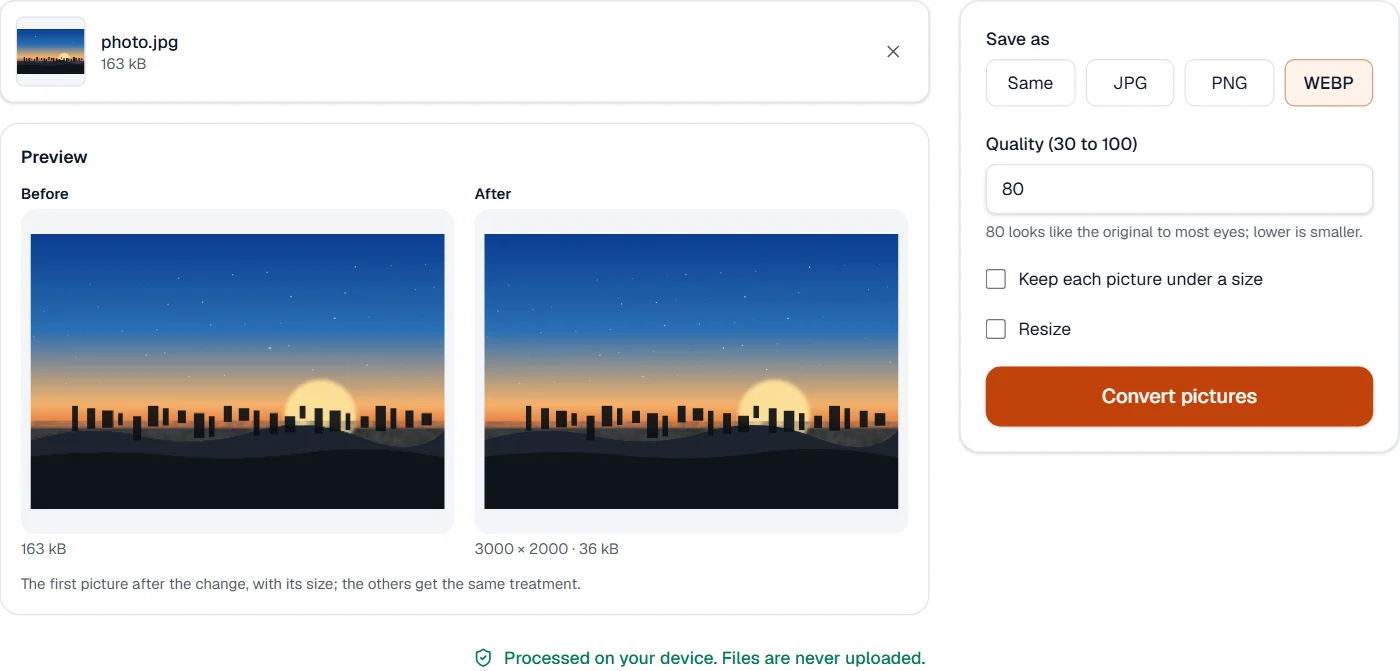
The browser decodes the picture, and the tool encodes it again in the format chosen. PNG keeps every pixel and is therefore large for photographs; JPG and WebP trade a little detail for size, with WebP smaller than JPG at the same look. A picture meant for a PDF page goes through JPG to PDF instead.
Measured on our sample photo
| Sample | JPG, as it is | As PNG | As WebP | Time |
|---|---|---|---|---|
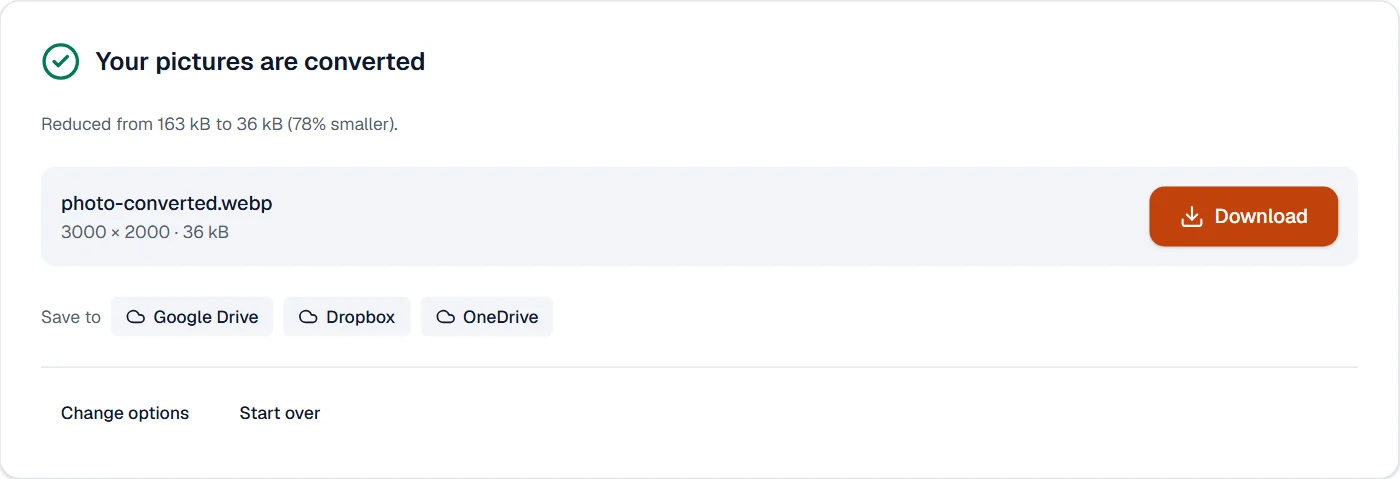
| Photo | 163 kB | 638 kB | 36 kB | 0.5 s |
Read it as the formats’ nature: PNG several times the JPG, because it keeps every pixel; WebP a fraction of it at the same quality.
What it looks like
What it cannot do
- Convert to HEIC, TIFF, BMP or SVG. The formats written are JPG, PNG and WebP.
- Keep transparency in JPG. Choose PNG or WebP for that.
- Keep EXIF data. It is dropped.
If something goes wrong
- One of the images can't be used. Try saving it as JPG or PNG.
- The browser could not read this picture format. Save it as JPG or PNG in the program it came from.
- The file got bigger
- A photo saved as PNG is larger than the JPG it came from, because PNG keeps every pixel. JPG or WebP at a chosen quality is smaller.
- WebP does not open in an old program
- WebP needs a browser or a program from the last few years. JPG and PNG open everywhere.
About Convert image
Convert image changes pictures between JPG, PNG and WEBP, and reads HEIC, BMP, GIF and AVIF too, so a photo from an iPhone or a screenshot can be used anywhere. Conversion runs in your browser.
How to use Convert image
Add the pictures.
Choose the format and, for JPG and WEBP, the quality.
Choose Convert and download the pictures.
Frequently asked questions
- Which format should I use?
- JPG for photos, PNG for screenshots and graphics with sharp edges or transparency, WEBP for the web when small size matters.
- Can I convert HEIC photos from an iPhone?
- Yes, where the browser can read HEIC, which Safari and recent Chrome do; the result is a JPG or PNG that opens everywhere.
- Is transparency kept?
- PNG and WEBP keep it; JPG has no transparency, so transparent areas become white.
- Can I convert a screenshot to JPG for a form that only takes JPG?
- Yes. Add the PNG screenshot and choose JPG; use Compress image afterwards if the form also limits the size.
- Can I convert WEBP pictures to JPG or PNG?
- Yes. WEBP, HEIC, BMP, GIF and AVIF pictures all convert to JPG or PNG in your browser.
Related tools
- Compress imageShrink JPG, PNG and WEBP pictures, down to an exact size in KB when a form demands one.
- Resize imageChange the pixel size of pictures by width, height, exact dimensions or percent.
- JPG to PDFTurn photos and images into a PDF, one image per page.
- PDF to JPGSave each page as a JPG, PNG or TIFF picture, or pull out the pictures inside the PDF.