
Fill and sign PDF
Fill in a PDF form, then sign it in the editor.
or drop files here
You can also paste with Ctrl+V
A document we wrote for this: nothing of yours is used.
Processed on your device. Files are never uploaded.
Quick facts
- Takes
- One PDF with form fields. A form without fields is sent to the editor, where text goes anywhere on the page.
- Gives
- The same form with your answers written into its fields, still a form: the values stay editable in any reader, and Flatten PDF makes them permanent when you want that.
- Runs
- In your browser. The form is never uploaded, and nothing is kept anywhere.
- Plan
- Free, with no account and no watermark: 10 tasks a day, on files up to 50 MB and 100 pages. Pro has no daily count and takes files up to 500 MB, with no page limit.
- Fields
- Text, text areas, check boxes, radio buttons, drop-downs and list boxes, read from the form with their choices and their rules, such as a maximum length.
- XFA forms
- A form that Adobe’s tools also describe in XFA is filled through its standard fields, and the XFA version is removed on saving, so Acrobat shows your answers like every other reader; the result says so. A form made only in XFA has no fields other readers can fill, and the tool says that too.
Filled the way a reader fills it
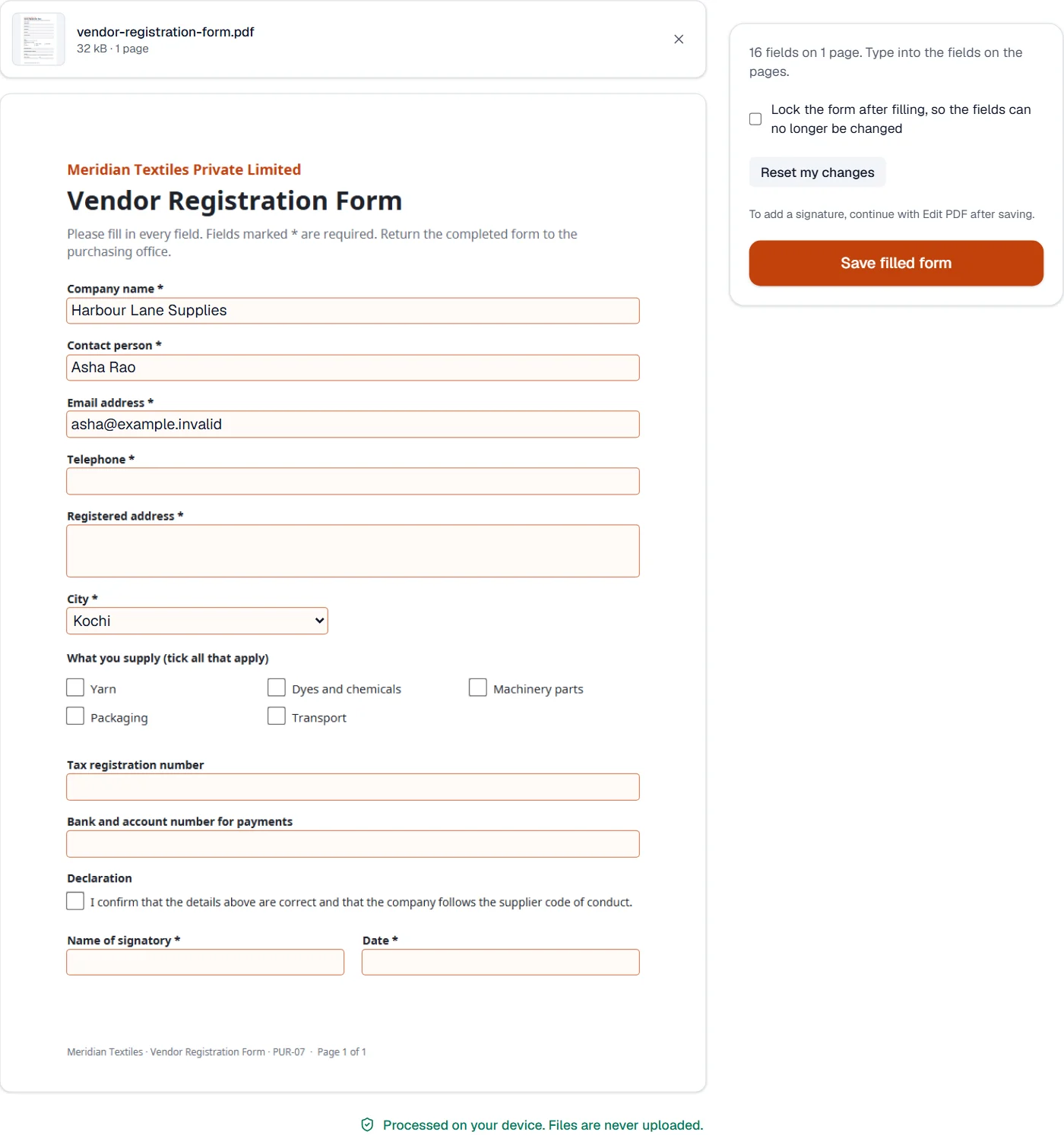
The form’s fields are read from the file with their names, kinds, choices and boxes on the page, and shown as inputs beside the pages. Saving writes each answer into its field and draws it there in Helvetica, the font every reader has, so the filled form shows the same in Acrobat, Preview, Chrome and on a phone; an answer in an Indian script is drawn with an embedded Noto Sans. The form’s own appearances are kept for the fields you did not touch.
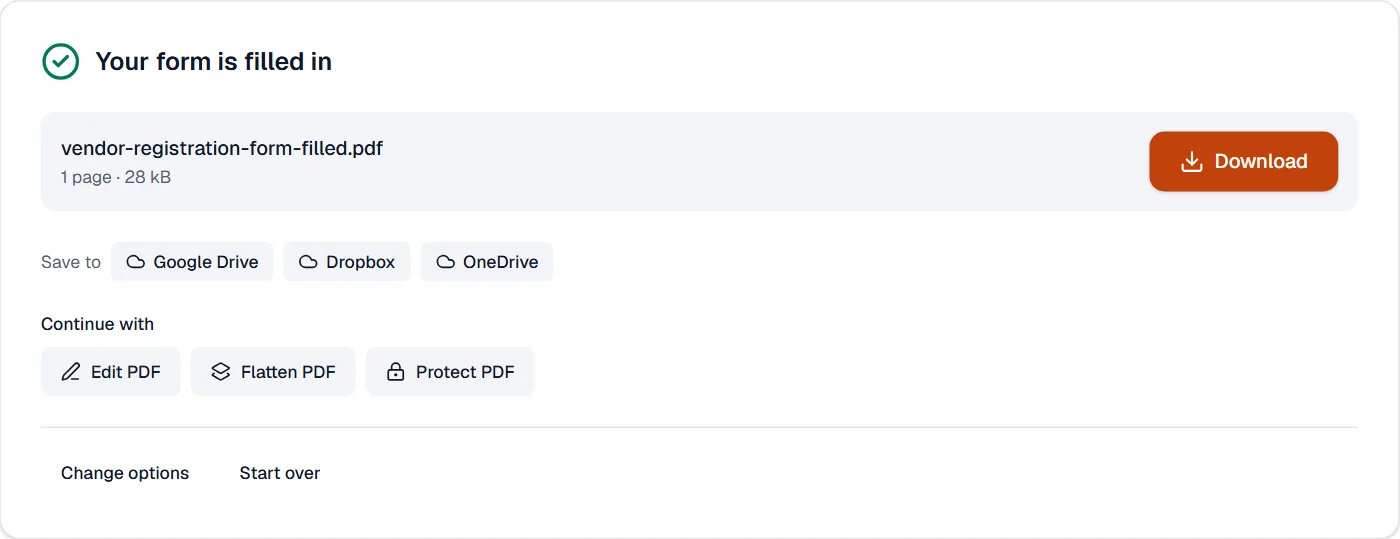
A signature is drawn or typed in Edit PDF, which the result offers as the next step with the filled form already open. A signature with a certificate and an audit trail, for someone else to sign, is what Sign requests are for.
Measured on our sample file
| Sample | Fields | Filled | Input | Output | Time to save |
|---|---|---|---|---|---|
| Vendor form | 16 | 3 | 32 kB | 28 kB | 0.2 s |
What it looks like
What it cannot do
- Fill a form made only in XFA, the older dynamic kind that only Adobe's readers fill. A form that also has standard fields is filled through those, and its XFA version is removed so Acrobat shows your answers too.
- Run the form's scripts. Totals, checks and dates that compute themselves do not run here.
- Fill a form that has no fields. The editor places text on the page instead, and this page sends you there.
- Sign on this page. The signature is drawn in the editor, which opens from the result.
If something goes wrong
- This PDF has no fillable fields. Open it in the editor to type anywhere on the page and add a signature.
- The form was printed to PDF or scanned. Open it in Edit PDF and type where the answers go. Open Edit PDF
- A field will not take the text
- The field has a maximum length or a format, such as a date. The hint under it says which.
- This PDF is protected. Enter its password to continue.
- Open it in Unlock PDF with its password first. Open Unlock PDF
About Fill and sign PDF
Fill and sign PDF completes forms and adds your signature without printing. Type into the fields, tick boxes, draw or type your signature or upload a picture of it, and save a copy that every viewer shows the same way.
How to use Fill and sign PDF
Add the PDF; fields are detected and highlighted.
Fill the fields, then add your signature by drawing it, typing it or uploading a picture, and place it where it belongs.
Choose Save and download the completed document.
Frequently asked questions
- The form has no fields. Can I still fill it?
- Yes. Add text anywhere on the page, tick boxes with a checkmark and place your signature; it works on scanned forms too.
- Is the signature legally valid?
- An image of your signature is accepted for most everyday paperwork. When you need proof of who signed and when, send the document as a sign request, which records the signer, the time and the address and attaches a certificate.
- Can someone else change what I filled in?
- Flatten the PDF after filling to turn the fields into fixed page content, or protect it with a password that forbids changes.
- Can I fill a PDF form on my phone?
- Yes. Open this page in the phone's browser, add the form and type into the fields; nothing is installed and nothing is uploaded.
- Can I save my progress and finish later?
- Yes. Save the filled copy and open it again later; the fields stay editable until you lock the form.
Related tools
- Create PDF formAdd fillable fields to any PDF, or let a printed form’s blanks, lines and boxes become fields: text boxes, check boxes, choices, dates and signatures.
- Sign PDF with a certificateA digital signature with your own certificate (.p12, .pfx), checked by every reader.
- Edit PDFEdit the text of a PDF like in a word processor, add text, images, signatures, stamps, shapes, highlights and comments, and check the spelling of the whole file.
- Flatten PDFMake form fields, comments and drawings a permanent part of the page.