
JPG to PDF
Turn photos and images into a PDF, one image per page.
or drop files here
JPG, PNG, WEBP, GIF or BMP
You can also paste with Ctrl+V
A document we wrote for this: nothing of yours is used.
Processed on your device. Files are never uploaded.
Quick facts
- Takes
- Pictures in JPG, PNG, WebP, GIF, and whatever else the browser can read: up to 10 at a time on the free plan, 50 with Pro.
- Gives
- One PDF with one picture per page, in the order you set, on A4 or Letter pages in portrait or landscape, or on pages the size of each picture, with or without a margin.
- Runs
- In your browser. The pictures are never uploaded, and nothing is kept anywhere.
- Plan
- Free, with no account and no watermark: 10 tasks a day, on files up to 50 MB and 100 pages. Pro has no daily count and takes files up to 500 MB, with no page limit.
- Preview
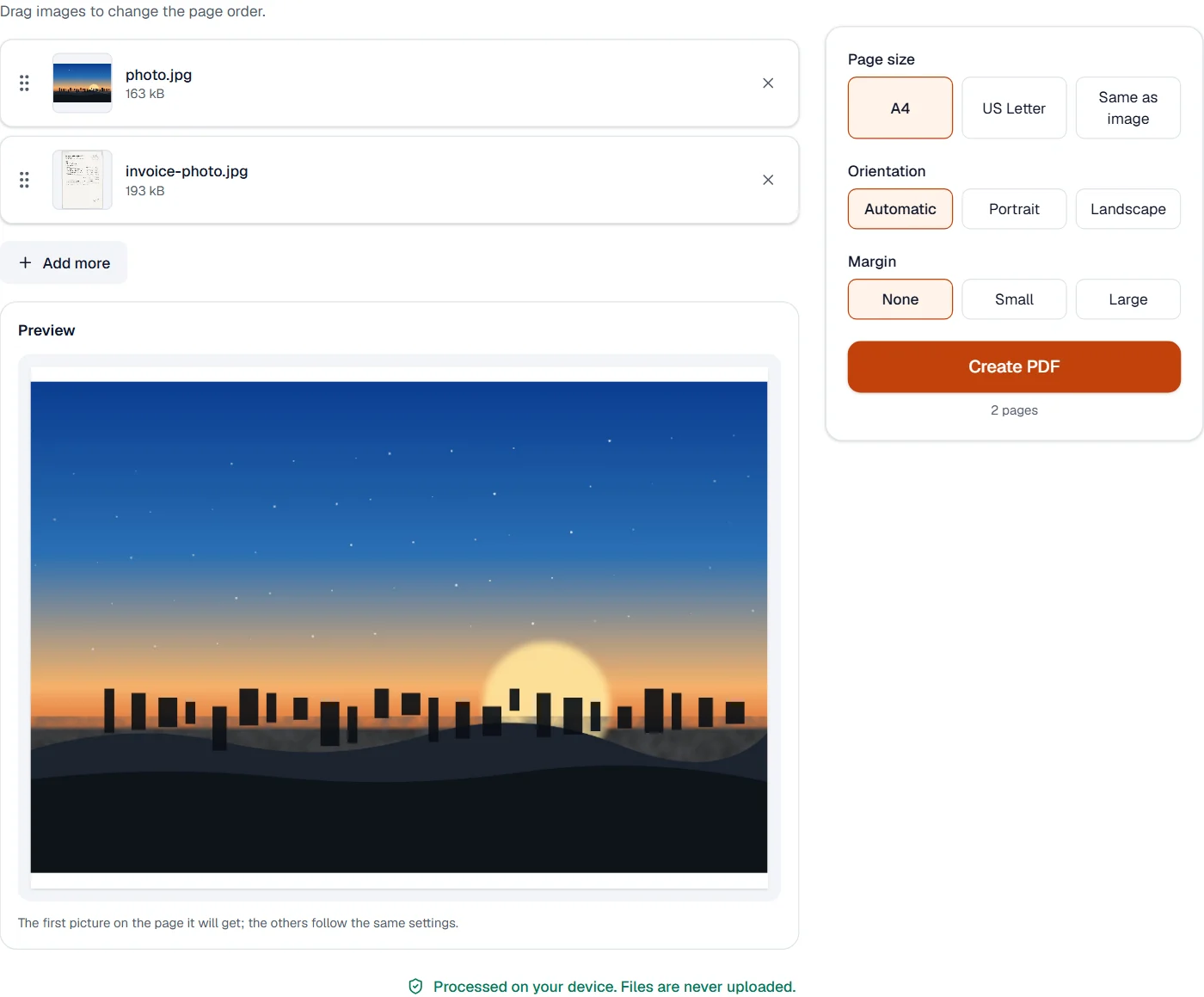
- The first picture is shown on the page it will get, made by the same conversion, and updates as you change the page or the margin.
Photos placed, not re-encoded
A JPG goes into the PDF as it is, byte for byte, turned the way its camera orientation says; a PNG too. Anything else the browser can read is redrawn as PNG first. Each picture is fitted to its page, centered, with the margin you chose, so nothing is cut and nothing is stretched. The PDF is about the size of the pictures together, since they are not re-encoded; to make it smaller, run the result through Compress PDF. A photo of a page that needs straightening and cleaning goes through Scan to PDF instead.
Measured on our sample files
| Samples | Pages | Pictures together | Time | |
|---|---|---|---|---|
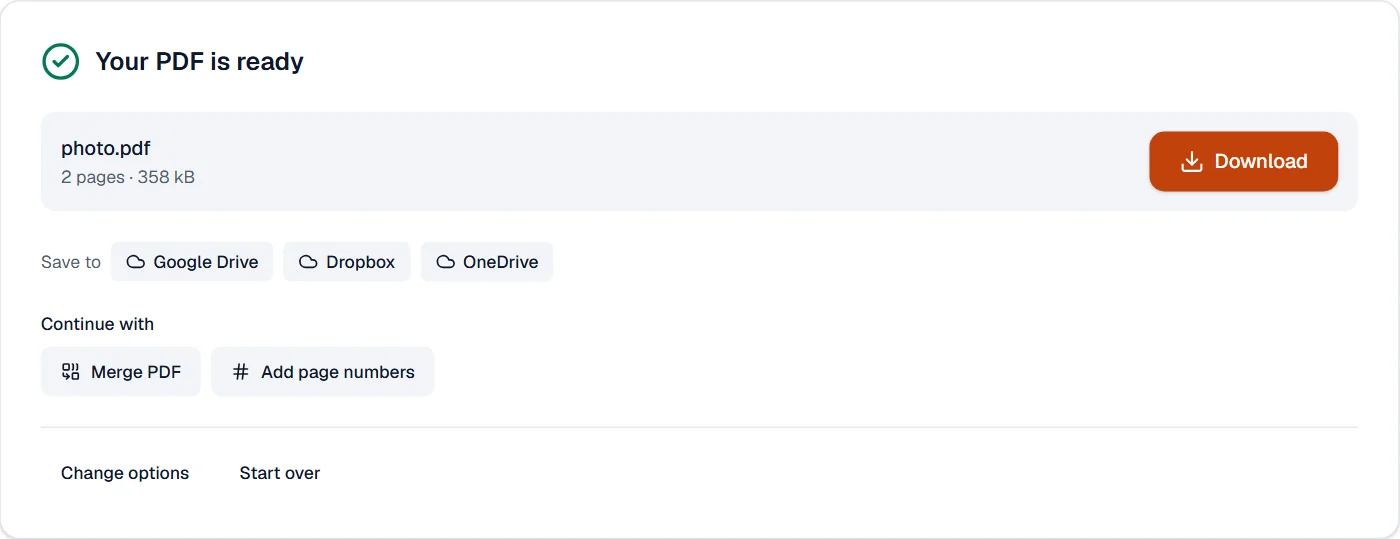
| Two photos | 2 | 356 kB | 358 kB | 1.2 s |
Read it as the point of the method: the PDF is the photos plus a few kilobytes of structure, and nothing was lost on the way.
What it looks like
What it cannot do
- Read the text in the pictures. The PDF holds the photos as photos; OCR PDF reads them afterwards.
- Make the photos smaller. They are placed as they are; Compress PDF or Compress image shrinks them.
- Open a HEIC photo in every browser. Convert it first where the browser cannot read it.
- Straighten a photo of a page. Scan to PDF does that.
If something goes wrong
- One of the images can't be used. Try saving it as JPG or PNG.
- Open the picture in Convert image, save it as JPG or PNG, and add that. Open Convert image
- The pages are in the wrong order
- Drag the pictures into order before pressing the button. Each picture becomes one page, in the order shown.
- The file is large
- Photos are placed as they are. Run the result through Compress PDF, which re-encodes them at the size they are shown. Open Compress PDF
About JPG to PDF
JPG to PDF turns photos and pictures into one PDF, each on its own page, in the order you set, with the page size, orientation and margins you choose. It also takes PNG, WEBP, HEIC and other formats.
How to use JPG to PDF
Add the pictures.
Order them, then pick the page size (fit to picture, A4 or Letter), orientation and margin.
Choose Convert and download the PDF.
Frequently asked questions
- Will my phone photos come out the right way up?
- Yes. The orientation stored by the camera is applied, so portrait shots stay portrait.
- Can I make the PDF smaller?
- Run Compress image on the pictures first, or Compress PDF on the result; both keep the pictures readable.
- Can I put several pictures on one page?
- Not in this tool; make the PDF and then place extra pictures with Edit PDF.
- How do I make a photo PDF under 100 KB or 200 KB for a form?
- Run Compress image on the photos with that target first, or Compress PDF on the result; both keep the pages readable.
- Can I convert many photos into one PDF?
- Yes. Add up to 10 pictures at a time on the free plan, or up to 50 with Pro; each becomes a page, in the order you arrange them.
Related tools
- PDF to JPGSave each page as a JPG, PNG or TIFF picture, or pull out the pictures inside the PDF.
- Scan to PDFPhotograph documents with your camera, straighten and clean them up, and save them as a PDF.
- Merge PDFCombine several PDFs into one, in the order you want, or the front and back sides of a scan made one side at a time.
- Compress PDFMake a PDF smaller, down to an exact size if you need one.
Guides
- How to compress a PDF under 200 KB without losing the textA step-by-step way to get a PDF under a size limit in your browser, what the result looks like on real files, and what to do when it will not go lower.
- Why a PDF will not compress, and what makes PDFs largePictures, fonts, drawings, attachments and leftovers: what takes the space in a PDF, a one-minute test to tell which one is yours, and what to do about each.