
Scan to PDF
Photograph documents with your camera, straighten and clean them up, and save them as a PDF.
or drop files here
JPG, PNG, WEBP, GIF or BMP
You can also paste with Ctrl+V
A document we wrote for this: nothing of yours is used.
Processed on your device. Files are never uploaded.
Quick facts
- Takes
- Photos of pages, from files or straight from the camera, up to 50 at a time.
- Gives
- A PDF of straightened, cleaned pages on A4, one photo per page, in the order you set: in color, gray, enhanced, or black and white.
- Runs
- In your browser. The photos are never uploaded, and nothing is kept anywhere.
- Plan
- Free, with no account and no watermark: 10 tasks a day, on files up to 50 MB and 100 pages. Pro has no daily count and takes files up to 500 MB, with no page limit.
- Corners
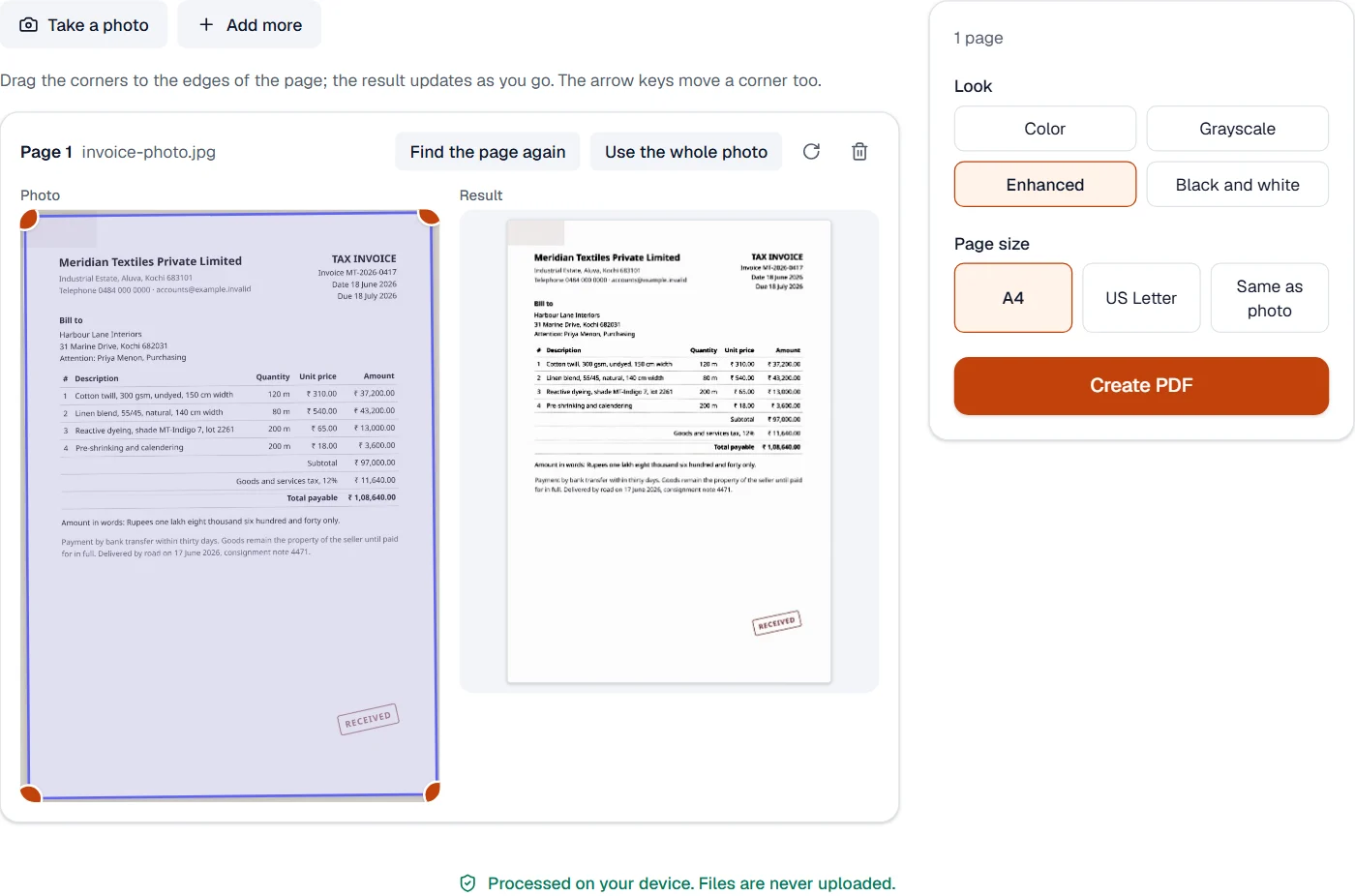
- Found on their own in each photo and shown as an outline; drag one, or move it with the arrow keys, when it is off.
The page found, straightened and cleaned
The page is found on a small copy of the photo: the paper is separated from the table by its brightness, the largest bright region is kept, and its extreme corners are the page’s corners. The photo is then straightened by a projection solved from those four corners, which takes the perspective out, and filtered: color as it is, gray, enhanced, where the lighting is evened out and a color cast removed, or black and white, where an adaptive threshold keeps text dark and shadows white. The maths is the engine’s own, tested on made-up photos with known corners.
The result is a picture of the page, cleaner than the photo. For the words, OCR PDF reads the result; for photos that need no straightening, JPG to PDF places them as they are.
Measured on our sample photo
| Sample | Corners found | Photo | PDF, color | PDF, black and white | Time |
|---|---|---|---|---|---|
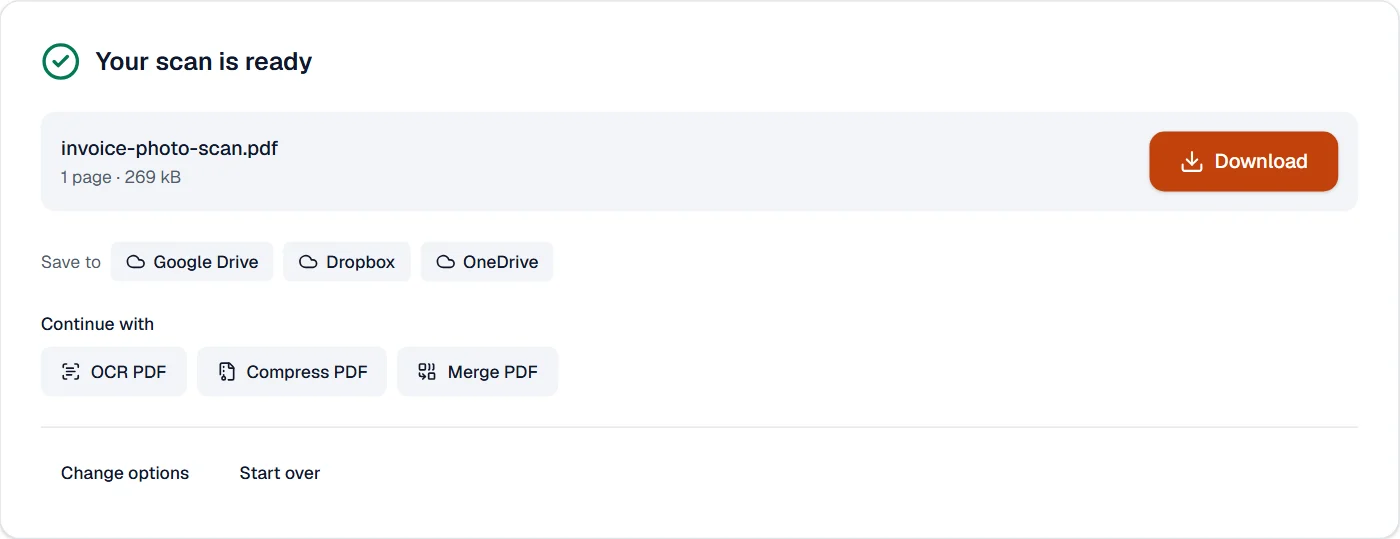
| Invoice photo | Yes | 193 kB | 269 kB | 47 kB | 0.8 s |
Read it as the choice the filters give: black and white is a fraction of the size of color and is what a printed page wants; color keeps a stamp or a signature in ink as it is.
What it looks like
What it cannot do
- Find several pages in one photo. Take one photo per page.
- Read the words. OCR PDF does that on the result.
- Rescue a photo taken at a steep angle or with the page half out of the frame. Move the corners by hand when the automatic ones are off; what is outside the photo cannot be invented.
- Clean handwriting or a stamp away. The black-and-white look keeps what is dark, whatever it is.
If something goes wrong
- The corners are in the wrong place
- Drag each corner to the page's corner, or move it with the arrow keys. The straightened page updates as you go.
- The page is dark or uneven
- Choose Enhanced, which evens the lighting, or Black and white for text on paper.
- One of the images can't be used. Try saving it as JPG or PNG.
- Open the photo in Convert image, save it as JPG, and add that. Open Convert image
About Scan to PDF
Scan to PDF turns your phone or laptop camera into a scanner: take a photo of each page, the document is found and straightened, the paper is cleaned up and everything is saved as a crisp PDF. Pages can also come from existing photos.
How to use Scan to PDF
Choose Take a photo and point the camera at the page, or add photos you already have.
Adjust the corners if needed and pick the look: color, grayscale, enhanced or black and white.
Add more pages, then choose Save and download the PDF.
Frequently asked questions
- Do the photos go to a server?
- No. Detection, straightening and cleanup all run in your browser; the photos stay on your device.
- Can I make the scan searchable?
- Yes. Run OCR PDF on the result to add a text layer you can search and copy.
- Why is the page not detected?
- Detection needs some contrast between the paper and the background; a darker table or more light helps. You can always drag the corners yourself.
- Can I scan a document with my phone without an app?
- Yes. Open this page in the phone's browser, allow the camera, and take a photo of each page; nothing is installed and nothing is uploaded.
- Can I scan several pages into one PDF?
- Yes. Take a photo of each page; they become pages of one PDF, and you can reorder, turn or remove any of them before saving.
Related tools
- OCR PDFMake a scanned PDF searchable, with text you can copy, in 25 languages.
- JPG to PDFTurn photos and images into a PDF, one image per page.
- Compress PDFMake a PDF smaller, down to an exact size if you need one.
- Merge PDFCombine several PDFs into one, in the order you want, or the front and back sides of a scan made one side at a time.