
Split PDF
Split a PDF into several files by page ranges or page count, at its bookmarks, or into parts under a size.
or drop files here
You can also paste with Ctrl+V
A document we wrote for this: nothing of yours is used.
Processed on your device. Files are never uploaded.
Quick facts
- Takes
- One PDF. A password-protected PDF is opened once its password is typed on the file card.
- Gives
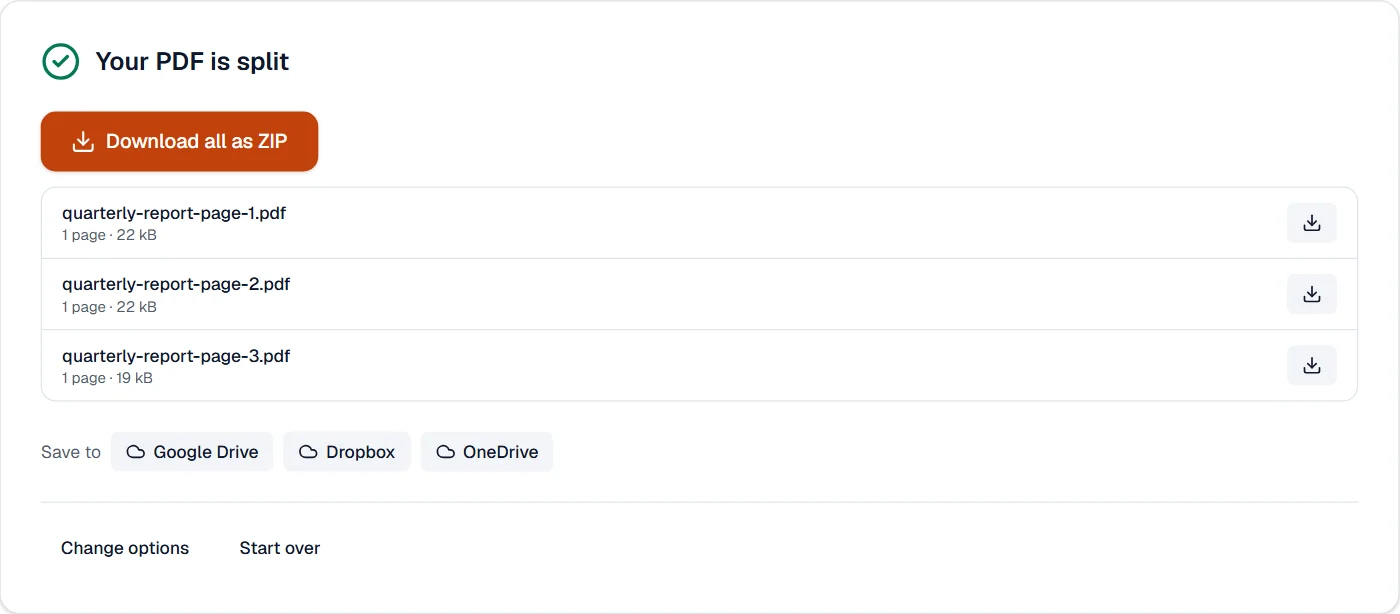
- Several PDFs, each with the pages you named, cut at the bookmarks, or kept under a size, as separate downloads and as one ZIP. Pages are copied as they are, fonts and pictures with them.
- Runs
- In your browser. The file is never uploaded, and nothing is kept anywhere.
- Plan
- Free, with no account and no watermark: 10 tasks a day, on files up to 50 MB and 100 pages. Pro has no daily count and takes files up to 500 MB, with no page limit.
- Five ways
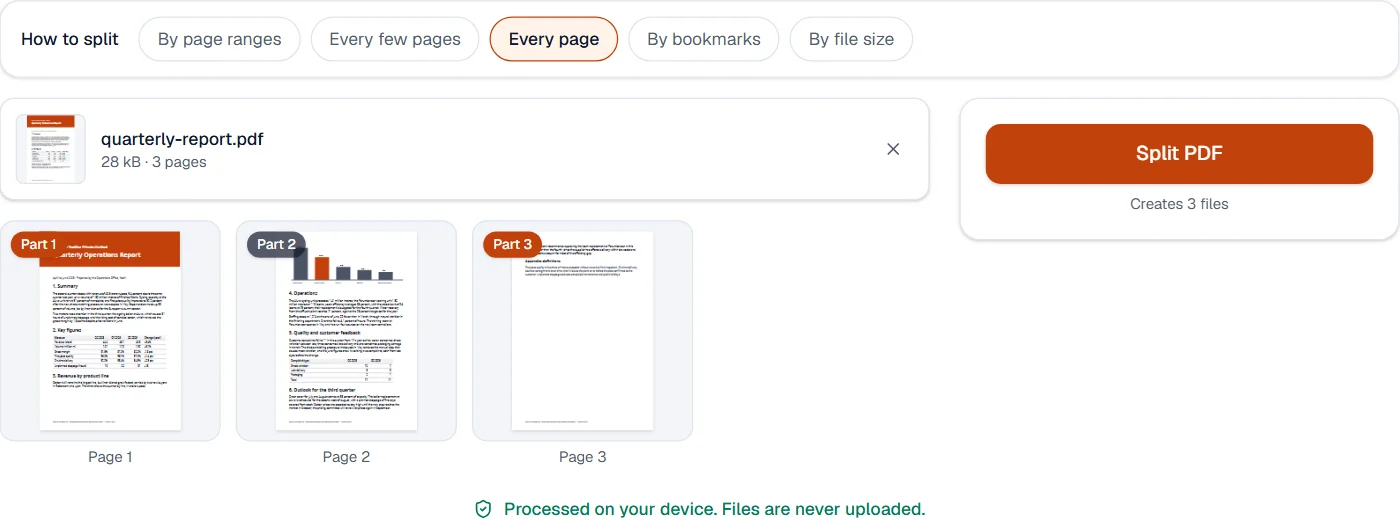
- Page ranges you type (1-3, 5, 8-10), a fixed number of pages per file, every page on its own, a file for each bookmark, or parts under a size. The page grid shows which part each page goes to before you cut.
Pages copied, parts named
Each part is a new PDF made from copies of the pages it names, with the fonts and pictures those pages use. Links from one page to another work inside a part when both pages are in it; a link to a page in another part is cut, so no copy of a page you did not ask for can hide in a file. The parts are named after their pages, pages-3-5 or page-4, so the ZIP reads in order.
Pages that no range names are left out on purpose and shown faded in the grid; name them, or choose every page, to cover them all. Each part keeps the layers its pages use, a hidden layer still hidden, and its pages keep their labels. Bookmarks, files attached to the document, the tags screen readers follow and a signature do not survive the cut, and the result says so when they were there. To put parts back together, Merge PDF takes them in any order.
Measured on our sample file
| Sample | Pages | Input | Parts | Output together | Time |
|---|---|---|---|---|---|
| Text report | 3 | 28 kB | 3 | 63 kB | 0.2 s |
Read it as what to expect: the parts together are larger than the original, because each carries its own copy of the fonts; a split of a long scan is quick, since the pages are copied rather than re-encoded.
What it looks like
By bookmarks
Choose By bookmarks above the file for a file per chapter or section, each named after its bookmark.
Quick facts
- Takes
- One PDF with bookmarks.
- Gives
- A ZIP with a PDF for each chapter or each section, named after its bookmark, and one for any pages before the first.
- Runs
- In your browser. The file is never uploaded.
- Plan
- Free, with no account and no watermark: 10 tasks a day, on files up to 50 MB and 100 pages. Pro has no daily count and takes files up to 500 MB, with no page limit.
Where the bookmarks point
The bookmarks are read with the pages they point at, at the level you choose. Each part runs from a bookmark’s page to the page before the next bookmark, and two bookmarks on the same page make one part. Bookmarks that point nowhere, or to another file, are passed over. A file without bookmarks can get them from its headings in Bookmarks and contents.
Measured on our sample file
| Sample | Files | Time |
|---|---|---|
| Employee handbook | 5 | 0.2 s |
By file size
Choose By file size for parts that each stay under a size, for mail and upload limits, the pages in order.
Quick facts
- Takes
- One PDF and the largest size of a part: 1, 2, 5, 10 MB or your own.
- Gives
- A ZIP of parts, the pages in order, each under the size.
- Runs
- In your browser. The file is never uploaded.
- Plan
- Free, with no account and no watermark: 10 tasks a day, on files up to 50 MB and 100 pages. Pro has no daily count and takes files up to 500 MB, with no page limit.
Each part made and weighed
Pages share fonts and pictures, so their sizes do not add up: the only way to know a part’s size is to make it. The tool makes a part with one more page, then two, four and eight more, until one is over the size, then halves the difference until it finds the most pages that fit. A page larger than the size on its own is a part by itself, and the result says so; Compress PDF can make it smaller.
Measured on our sample file
| Sample | Input | Largest part allowed | Parts | Largest part | Time |
|---|---|---|---|---|---|
| Brochure | 2 MB | 691 kB | 4 | 688 kB | 0.2 s |
What it cannot do
- Split by bookmarks or by file size. Split PDF by bookmarks and Split PDF by size do that.
- Keep bookmarks. The outline of the original is not carried into the parts.
- Keep form fields fillable. Their values stay on the page; the fields stop being editable.
- Keep a digital signature valid. A signature certifies the whole original file.
- Split a PDF without bookmarks. Bookmarks and contents can make them from the headings first, or Split PDF cuts by page ranges.
- Split at a bookmark that points outside the document or nowhere. Such bookmarks are passed over.
- Make a page smaller than it is. A page larger than the size stays whole in a part of its own; Compress PDF makes pages smaller.
- Keep the bookmarks. Each part is a rebuilt document, and the result says so.
If something goes wrong
- Check the page numbers. Use numbers and ranges like 1-3, 5.
- Write pages and ranges with commas and dashes, such as 1-3, 5, 8-10, within the number of pages the file has.
- A part is missing a page
- Pages that no range names are left out on purpose, and shown faded in the grid. Name every page you want, or choose a fixed number of pages per file to cover them all.
- This PDF is protected. Enter its password to continue.
- Open it in Unlock PDF with its password, then split the unlocked copy. Open Unlock PDF
- This PDF has no bookmarks to split at.
- Make bookmarks from the headings with Bookmarks and contents, then split here. Open Bookmarks and contents
- A chapter is split from its first page
- Its bookmark points at a page after the chapter starts; Bookmarks and contents can set it again.
- A page is larger than the size you asked for on its own, so its part is over that size.
- Compress the PDF first, then split it; or choose a larger size. Open Compress PDF
- It takes a while
- Each part is made and weighed a few times to find how many pages fit; a long file with many pictures takes longer.
About Split PDF
Split PDF cuts one document into several files: by page ranges you type, every so many pages, or one file per page. It is the quick way to send only the pages someone needs, and it all happens in your browser.
How to use Split PDF
Add the PDF you want to split.
Choose how to split: custom ranges such as 1-3, 4-9, a fixed number of pages per file, or every page on its own.
Choose Split PDF and download the parts, one file or a ZIP with all of them.
Frequently asked questions
- How do I write page ranges?
- Separate parts with commas and use a dash for a range: 1-3, 4, 7-9 makes three files. Each part becomes its own PDF.
- Is there a limit on the number of pages?
- No fixed limit; documents with hundreds of pages split fine on an ordinary laptop or phone.
- Can I split just to remove a few pages?
- Remove pages is faster for that: pick the pages to drop and keep the rest as one document.
- How do I split a PDF into individual pages?
- Choose "Every page": each page becomes its own PDF, and you download them all at once.
- Can I split a PDF and keep only some parts?
- Yes. Enter just the ranges you want, such as 1-3 and 8-10; the other pages are left out. To pick single pages, use Extract pages.
- What if the PDF has no bookmarks?
- The page says so; Split PDF cuts by page ranges instead, and Bookmarks and contents can make bookmarks from the headings first.
- How are the files named?
- After the document and the bookmark, numbered in order, without the characters file systems refuse.
- How does it know the size of a part?
- It makes the part and weighs it: pages share fonts and pictures, so the sizes of single pages do not add up. Each part holds as many pages as fit.
- What if one page is larger than the size?
- That page becomes a part of its own, and the result says which parts are over the size. Compress PDF can make such a page smaller.
Related tools
- Merge PDFCombine several PDFs into one, in the order you want, or the front and back sides of a scan made one side at a time.
- Extract pagesSave selected pages as a new PDF.
- Remove pagesDelete the pages you don’t need from a PDF, picked by hand or found blank.
- Bookmarks and contentsEdit a PDF's bookmarks, make them from its headings, add a contents page.
Guides
- How to compress a PDF under 200 KB without losing the textA step-by-step way to get a PDF under a size limit in your browser, what the result looks like on real files, and what to do when it will not go lower.
- Why a PDF will not compress, and what makes PDFs largePictures, fonts, drawings, attachments and leftovers: what takes the space in a PDF, a one-minute test to tell which one is yours, and what to do about each.